To get started with Transactions, you’ll need to export your recent bank transactions in CSV format.
We recommend downloading the last 12 months of transactions from your bank. (Tip: Click here for bank-specific instructions on exporting CSV files.)
Before you upload, please double-check the following:
- One account per CSV file
Each CSV file must contain transactions from only one bank account.
For example, if you have three offset accounts, you’ll need to export three separate CSV files. - Required columns only
Your CSV file must include:
-
- Date
- Transaction Description
- Transaction Amount
If your file includes extra columns such as Outstanding Balance or Account Balance, please remove them before importing, as these can cause issues during processing.
Important note for AMEX CSV files
If you’re importing transactions from an American Express (AMEX) account, there’s one extra step you’ll need to take. This is because AMEX CSV files record transaction amounts in reverse:
- Expenses appear as positive values
- Income or refunds appear as negative values
This is due to how AMEX represents transactions from its own accounting perspective rather than the cardholder’s. If left unchanged, this can:
- Flip your income and expenses
- Distort your figures
- Cause issues with transaction matching and rules
How to fix AMEX CSV files before importing
Step 1: If you have already imported the AMEX Transactions, you need to delete existing AMEX transactions in Moorr
Go to the AMEX Financial Card, open the Transactions tab, and bulk delete the existing transactions.
Step 2: Invert the transaction amounts in your CSV file
Open your CSV file in Excel or Google Sheets.
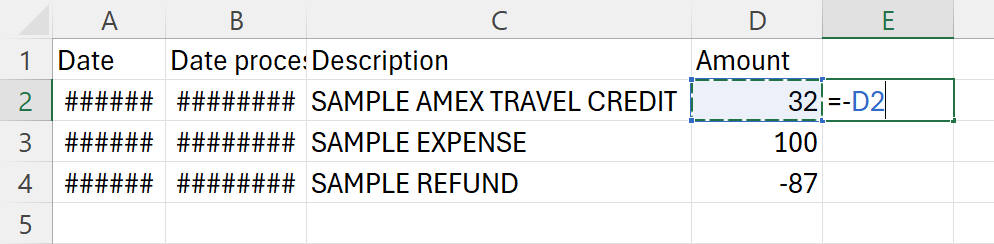
Add a new column next to the Amount column.
In the first transaction row, enter a formula such as:
=-D2
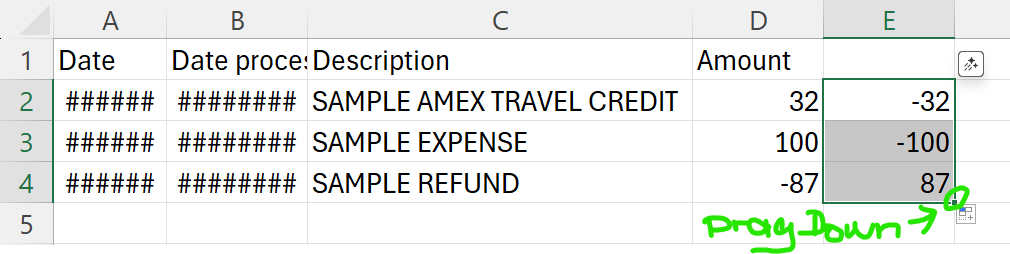
Step 3: Apply the formula to all transactions
Copy the formula down the entire column so each transaction is inverted.
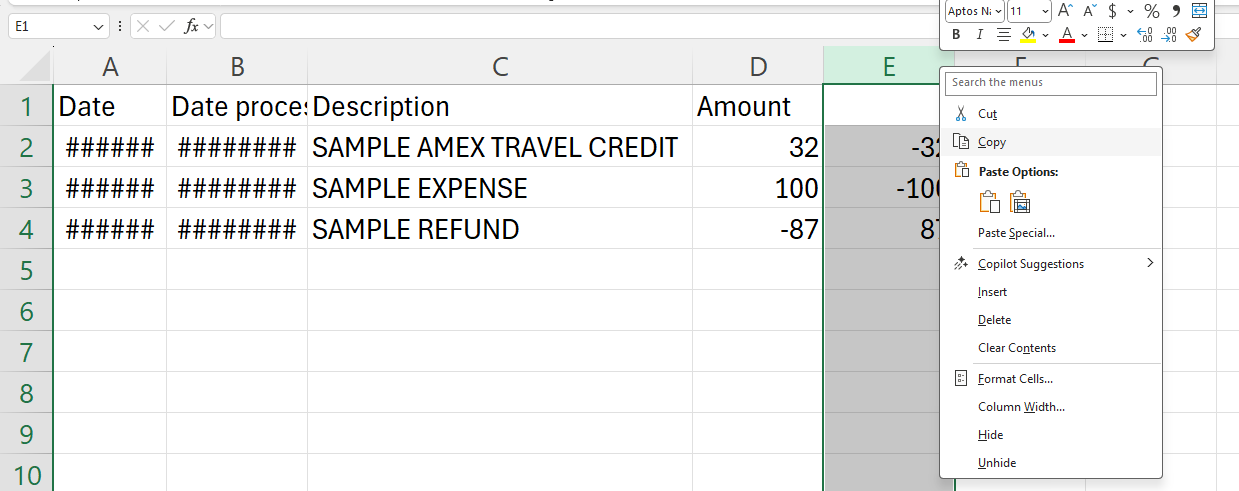
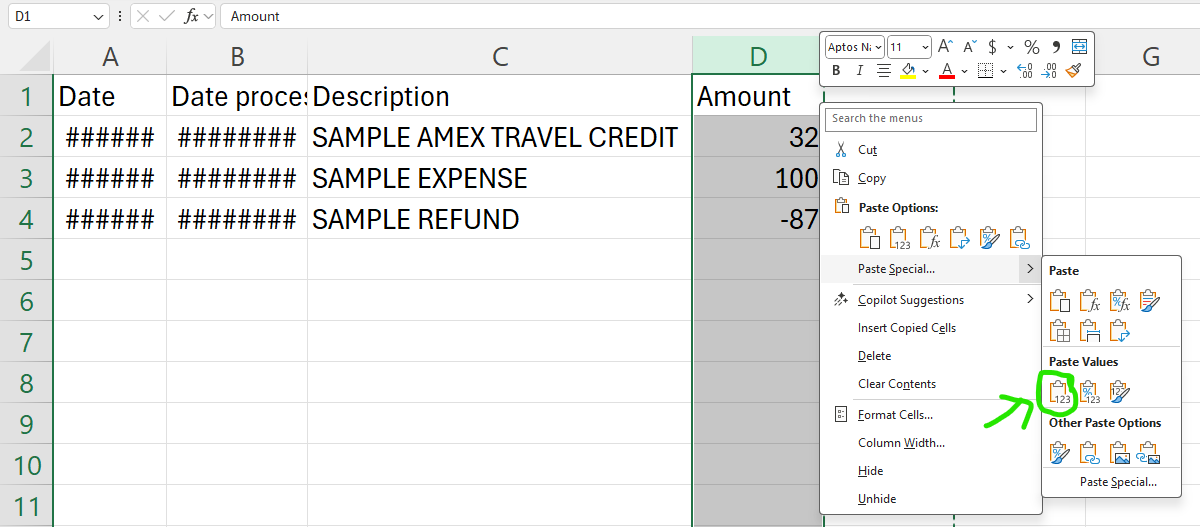
Step 4: Copy & Paste values over the original Amount column
Copy the new column, select the original Amount column, and paste values only (e.g. Ctrl + Shift + V).
Step 5: Clean up and re-save
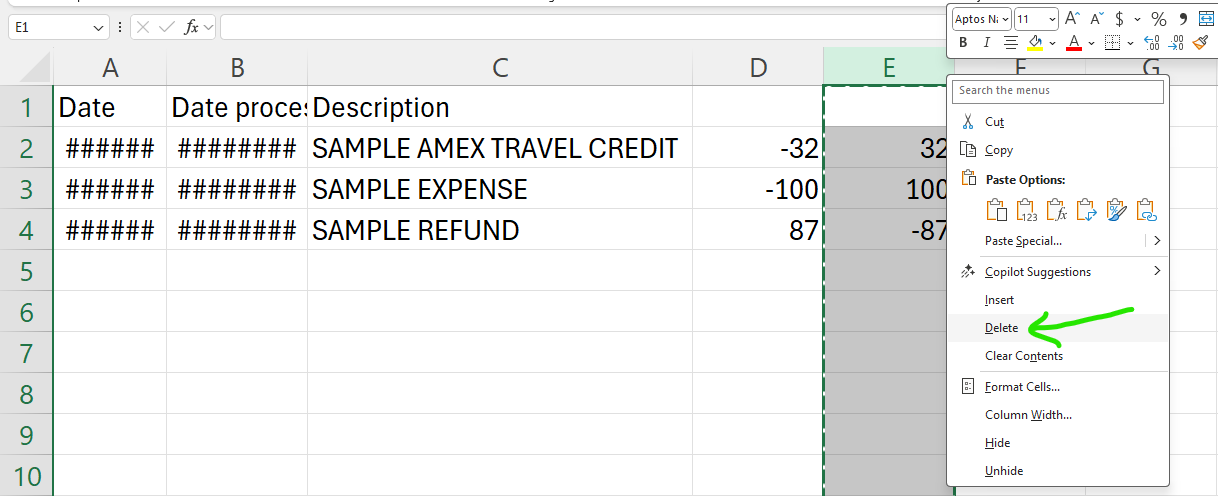
Delete the temporary formula column and re-save the file as a CSV.
Step 6: Re-import the corrected file into Moorr
If you already have Opti rules set up, your transactions should automatically allocate themselves correctly.