Why your bank feed isn’t the full story.
Most investment property transactions go through your Property Manager. Some bills are paid directly by the landlord, and with a self-managed property the landlord handles all of them.
With CSV bank imports and open banking (coming soon), we can already see the net income you receive from your Property Manager, plus any transactions you pay for directly.
But what about everything your Property Manager handles on your behalf? Your bank feed only shows the net amount that lands in your account. To see the full picture of how your property is performing, you need your rental statement.
What property transactions does?
Property Transactions is a completely optional feature. If you want to understand your investment property’s performance in detail, it gives you the full breakdown of income and expenses.
It pulls transaction data straight from your monthly rental statements into Moorr and uses Opti, our very own Moorr AI, to match the transactions. If a matching bank transaction is already recorded, you can link the two so the same income or expense isn’t counted twice.
Throughout this article, a ‘property transaction’ means a transaction extracted from an actual rental statement.
Getting started
Property Transactions works from your monthly rental statements. It can’t read annual rental summaries, because they don’t include transaction dates or enough detail in the descriptions.
Step 1: Open your Property Investment asset card and select the ‘Transactions’ tab.
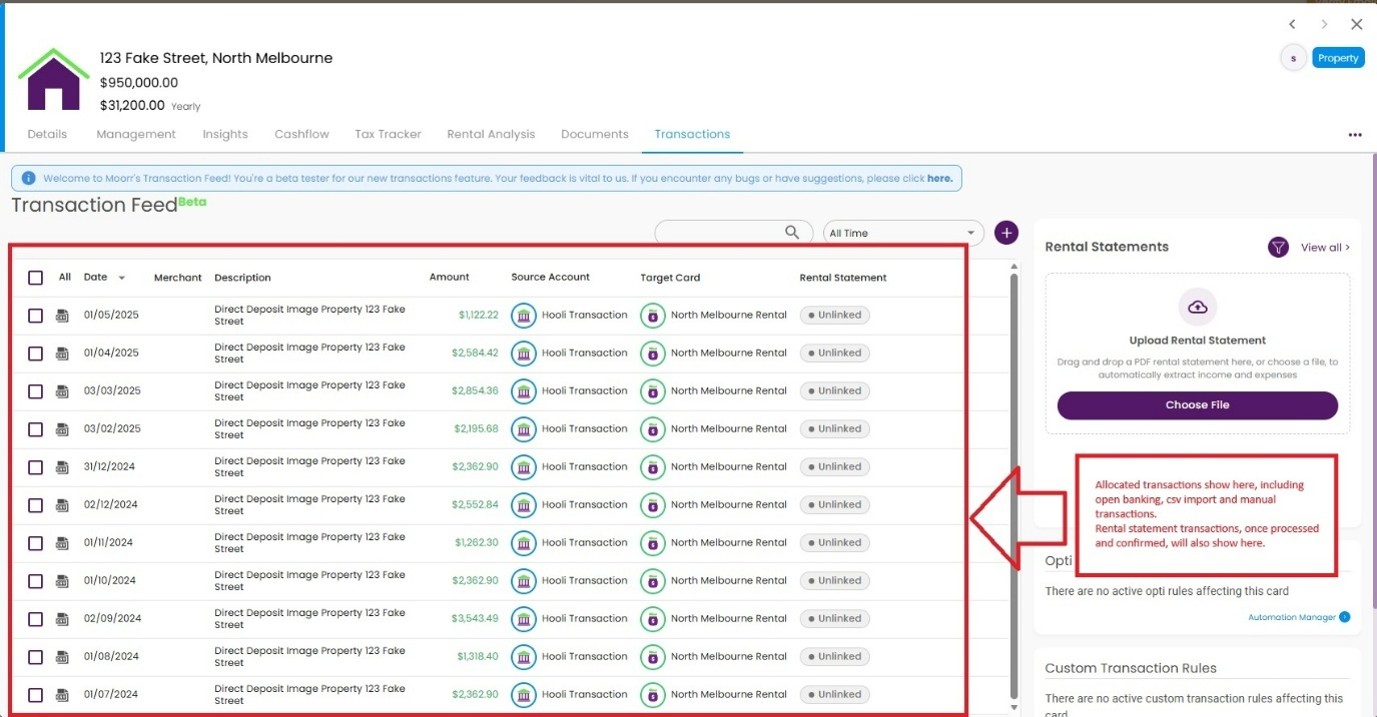
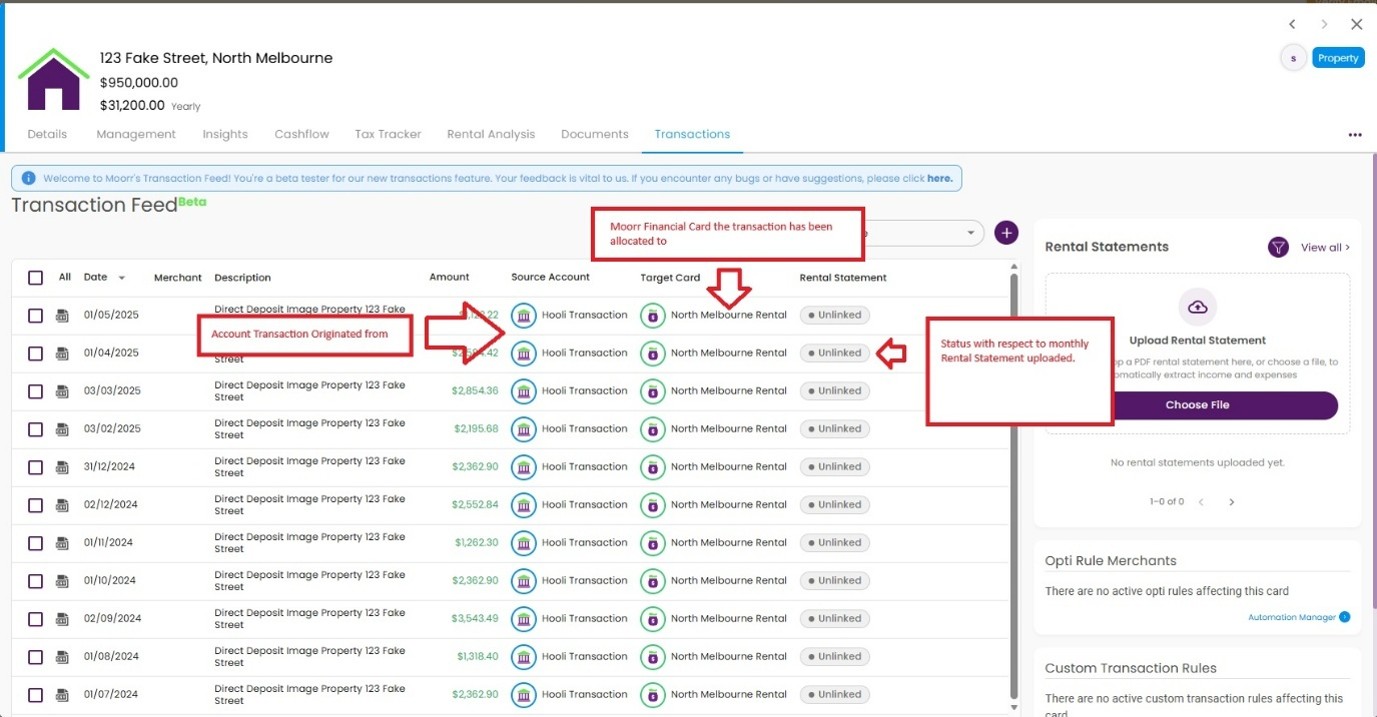
Step 2: You’ll see a new ‘Rental Statements’ box on the right (see screenshots below). On the left are any existing property transactions, such as imported or open banking transactions, provided they’ve already been allocated to the property itself or to its income and expense cards. Unallocated transactions will not show here.
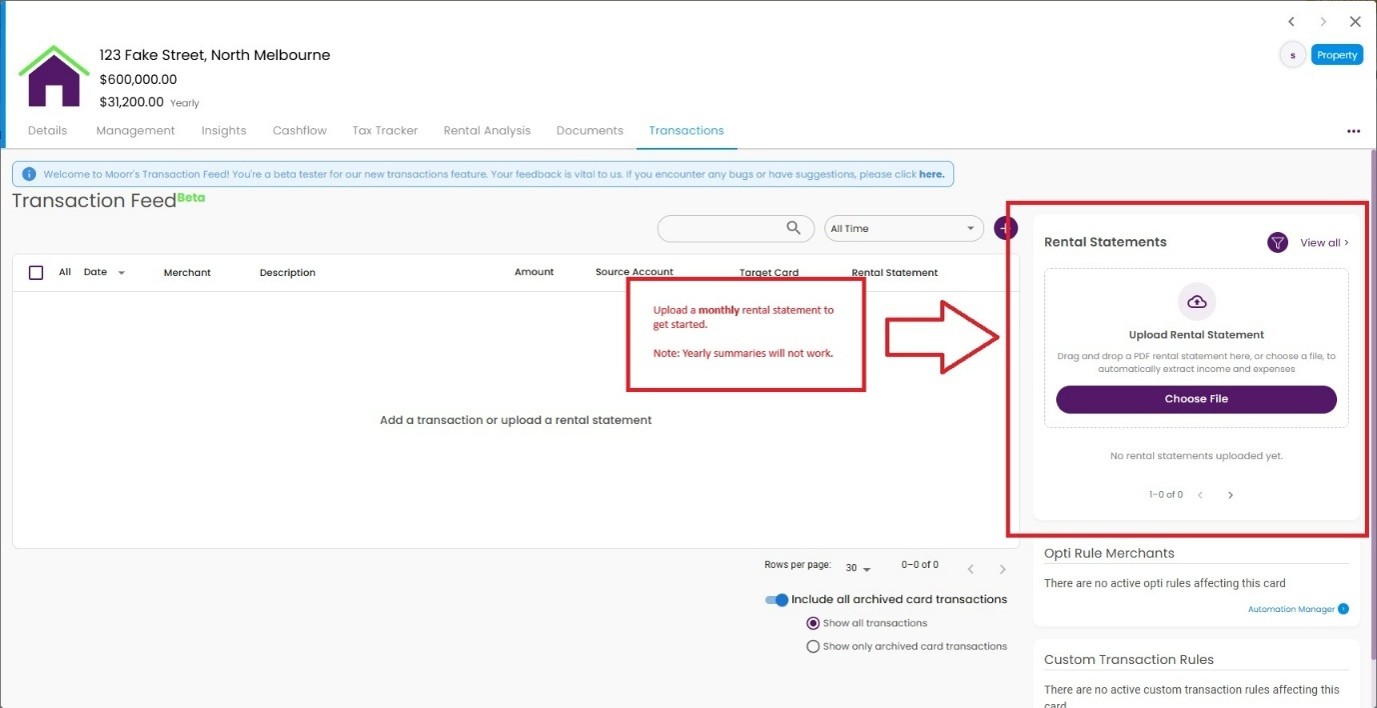
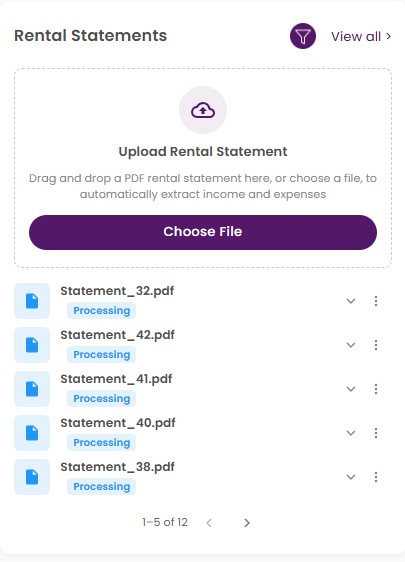
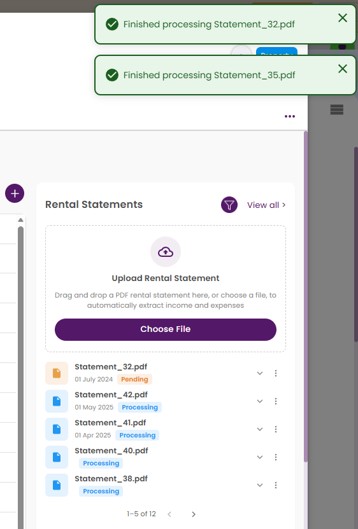
Step 3: Once you’ve selected a file to upload, it will show a ‘Processing’ status (see screenshots below). You can upload and process several statements at once, but we recommend starting with just one so you can see how it works. Once it’s done, you’ll get a notification and the status will change to ‘Pending’. Here’s what the statement statuses mean:
- Processing: the statement is being processed by Opti AI and will be available shortly.
- Pending: the statement has completed its processing and is awaiting your action.
- Confirmed: You’ve confirmed and created property transactions but have not linked a rental statement to a bank transaction.
- Linked: You’ve confirmed and created property transactions as well as linked it to a bank transaction.
Step 4: Click the file and hit ‘Process Statement’ to see the transaction lines Moorr has extracted. Once Opti has finished processing your statement, you’ll see the green pops up like the screenshot below. Your main objective is to check the list of transactions that will be created, ensuring they match your rental statement. We use Opti AI to extract the transaction info, and it can make mistakes. We expect this to get more reliable over time, but for now please check each statement before confirming it.
Step 5: Confirm and Create Transactions.
First, you’ll see the raw property transactions pulled from your rental statement, ready for you to review (see screenshot below). Have a look at the lists as Moorr creates each one separately: typically your gross income, management fees, and any other expenses listed on the statement.
When you’re happy with the list, hit ‘Confirm and process transactions’.
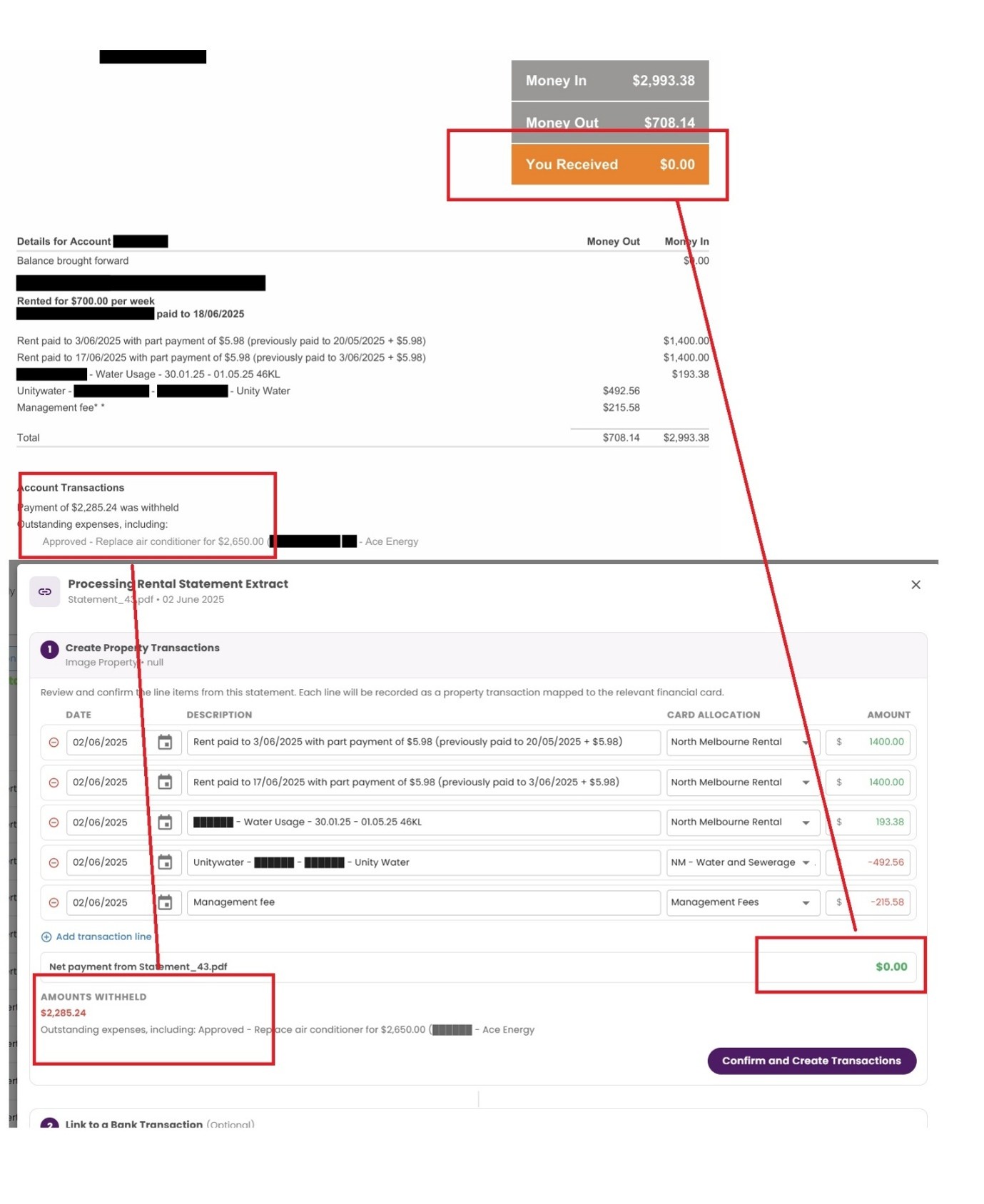
Amounts withheld and owner contributions
Sometimes your property manager will hold back rental income to cover upcoming maintenance work. You may also contribute extra funds of your own in advance, so the work can be paid for when it happens.
For example, if your whole month’s rent is withheld, your ‘net balance transferred’ may be $0 for that month. In such a case, there’s no bank transaction to refer to, so recording the month from your rental statement is the only way to capture what actually happened.
Typically, we work on a ‘cash basis’, meaning the expense isn’t recorded until the money is actually spent. So, if a month’s rent is withheld for major plumbing repairs, the plumbing expense will appear next month, along with any leftover funds paid into your bank account.
Step 6: Link Bank Transaction (optional)
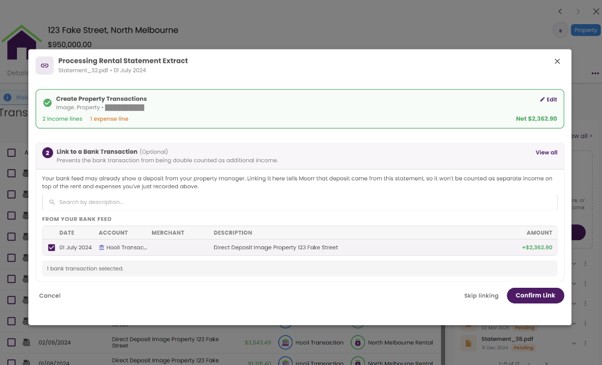
This step only applies if the same income is already recorded in Moorr as a bank transaction.
You’ll now be asked whether you want to link an existing bank income transaction, so the same income isn’t counted twice.
If you already have net income transactions coming in from a CSV import or open banking, they’ll keep showing up alongside the property transactions you just created. Linking the two tells Moorr they’re one and the same, and that the rental statement is the better source of truth because it carries the full breakdown. Moorr then ignores the bank transaction and uses your property transactions from that point on.
Moorr automatically finds bank transactions with a matching dollar amount that have already been allocated to either this Asset Card or the Property Income Card. If the right one isn’t listed, choose ‘view all’ to search for it.
Step 7: And you’re done! Get ready cause we’ll showcase all the insights you’ll get now 😉
Property Cashflow Insights
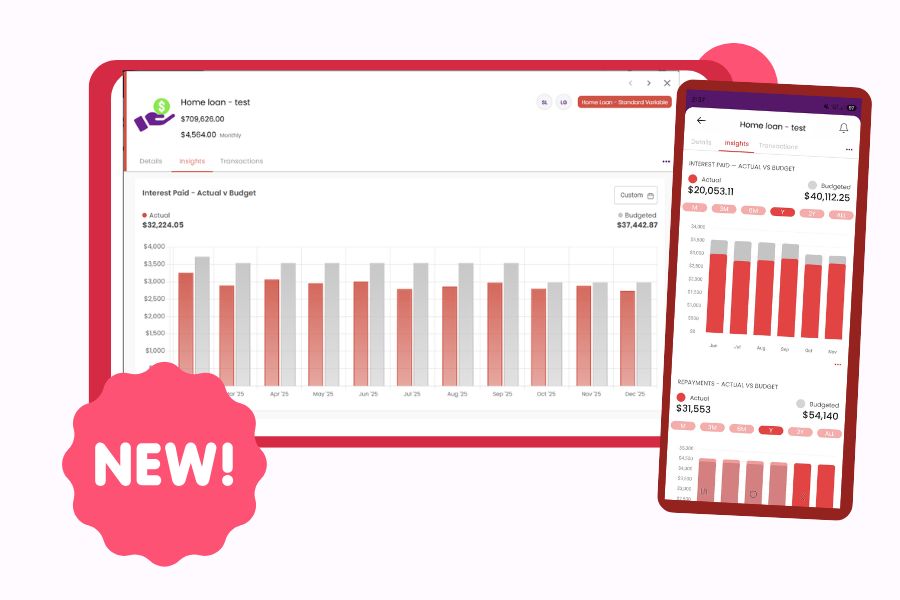
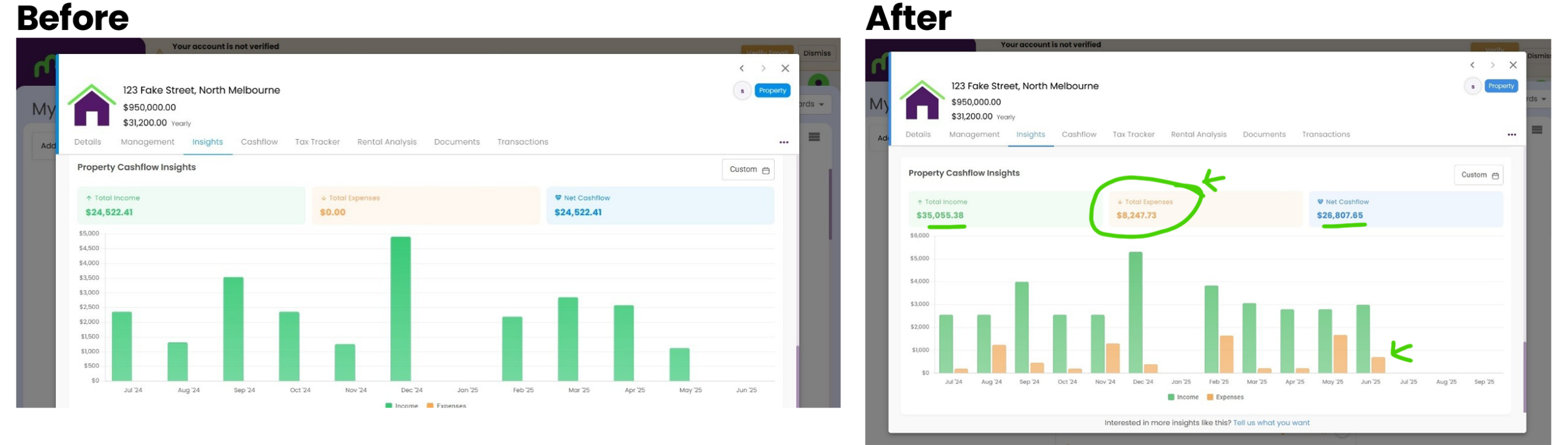
Your insights page now shows a chart of the actual income and expense figures from your linked transactions.
- Before Property Transactions – the chart below draws only on open banking or imported transactions, so it can only show net income.
- After Property Transactions – gross income and actual expenses, broken out in full. Note the different June figure, caused by an amount withheld. Without the rental statement, you’d never see it. Broken down into Gross Income and Actual Expenses for clarity.
NOTE: Loan repayments will soon be added to this chart for further clarity on cashflow.
Frequently Asked Questions:
How do I view property cashflow insights?
Open the Insights page for the property. Once your statements are confirmed and linked, the income and expense charts are built from your property transactions rather than your net bank income, so you can see gross rent and each expense separately. The Insights section above shows the same property before and after.
Loan repayments will soon be added to this chart for further clarity on cashflow.
I think Opti made a mistake extracting my data. What should I do?
Click the 3 dots next to the statement and hit ‘re-extract’. Opti will have another go at reading it. If it still gets something wrong, the quickest fix is to adjust the transaction lines manually.
What if I make a mistake?
Click the 3 dots next to the statement to unlink a transaction, or to delete the statement and start again. Keep in mind that property transactions are tied to the statement they came from, so deleting the statement removes those transactions with it.
How do I edit a statement after I’ve processed it?
Click the 3 dots and hit ‘Edit Transaction’, just as you would for any other transaction. The difference is where it takes you: back to the same property transaction screen you saw when processing the statement, where you can make your changes.
Why do I need to link a bank transaction to a property transaction?
You don’t have to, but linking stops the same income being counted twice. If your net rent already arrives in Moorr as a bank transaction through open banking or a CSV import, and you then create property transactions from the rental statement covering that same month, you end up with two records of the same money.
Linking them tells Moorr they are one and the same, and that the rental statement is the better source of truth because it carries the full breakdown: gross rent, management fees, and each expense separately. Moorr then ignores the bank transaction and reports from your property transactions instead, so you get the detail without inflating your income.
Can rental statements and property transactions be fully automated?
Our vision for Property Transactions is near-full automation. As a first step, we’re looking at giving each property address its own unique Moorr email address.
You’d give that address to your property manager, and any statements they email through would be picked up by Moorr automatically and processed by Opti. You’d then be given the option to have Opti auto create and auto link your Property Transactions.
True money on autopilot.