Introducing Moorr’s Transaction Feature & Tools:

We couldn’t thank you enough for jumping in to help us shape the new Transaction Feed. This is a staged Beta release as we improve the experience with your feedback.

What to expect?

With the release of Transactions in Moorr, user can now sort, track, manage and report on all financial happenings within one’s household, giving them the ability to measure estimated or planned financial activities against actual values of what money was received or spent against these ‘budgeted’ targets.

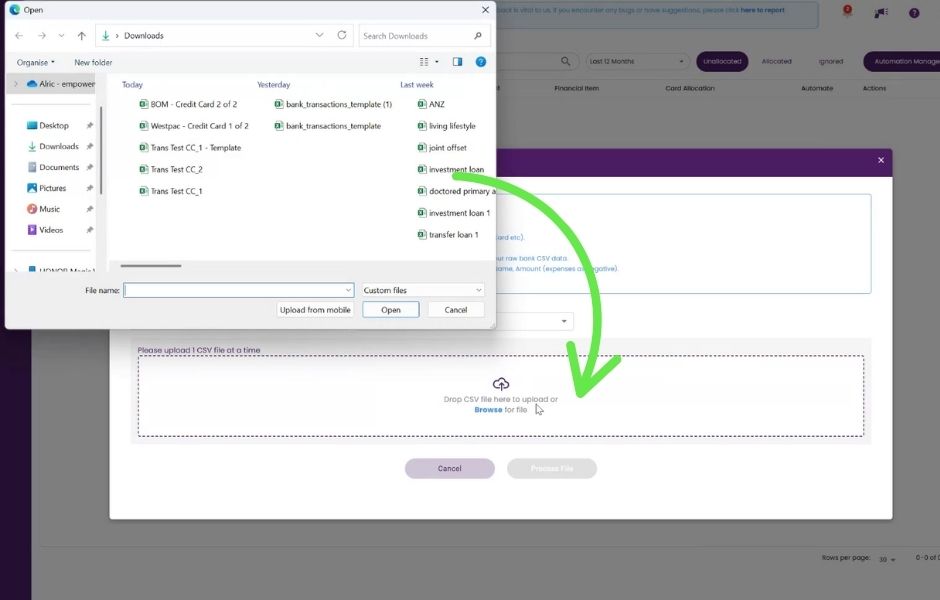
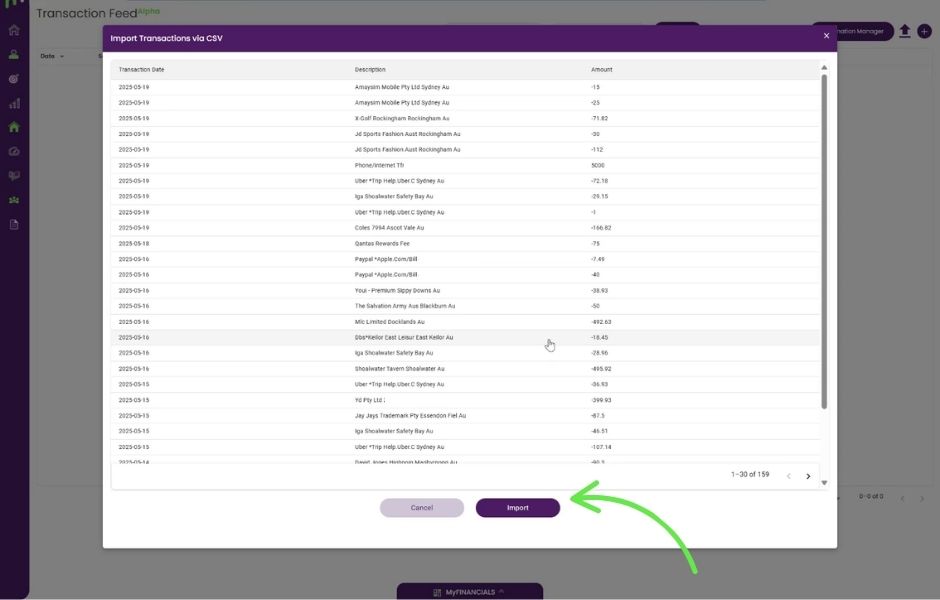
This new tool gives the users the option to manually add transactions one by one, or more practically, with the use of the built in smart AI software, they can significantly speed up the importing and sorting of hundreds of transactions within seconds, via the bulk uploading functionality via a CSV file.

(In the not too distant future, users will also be able to upload bulk transaction via opening banking – which via them granting permission, these transaction data will securely be imported via a link with their respective banks).

Step-by-Step Guide
to Get Started

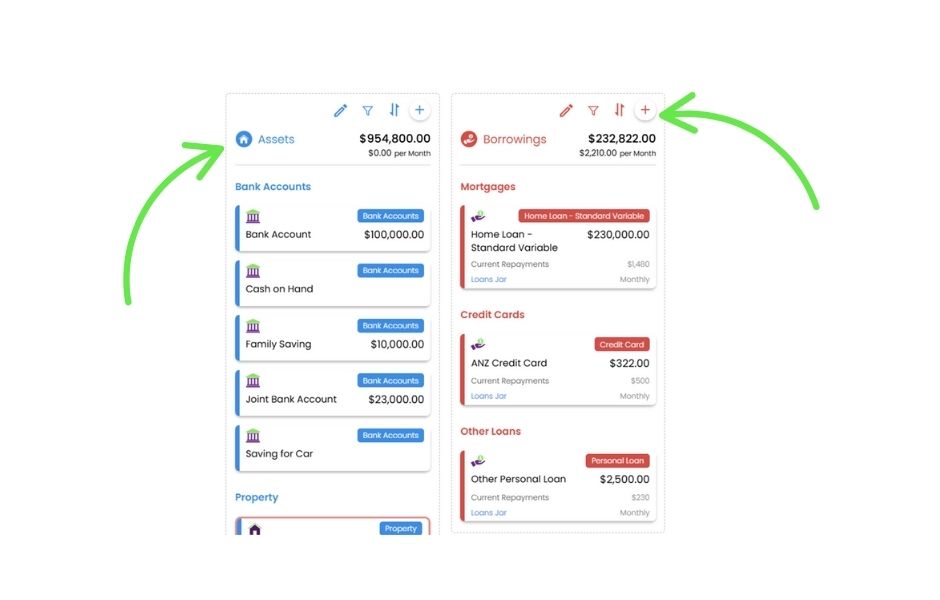
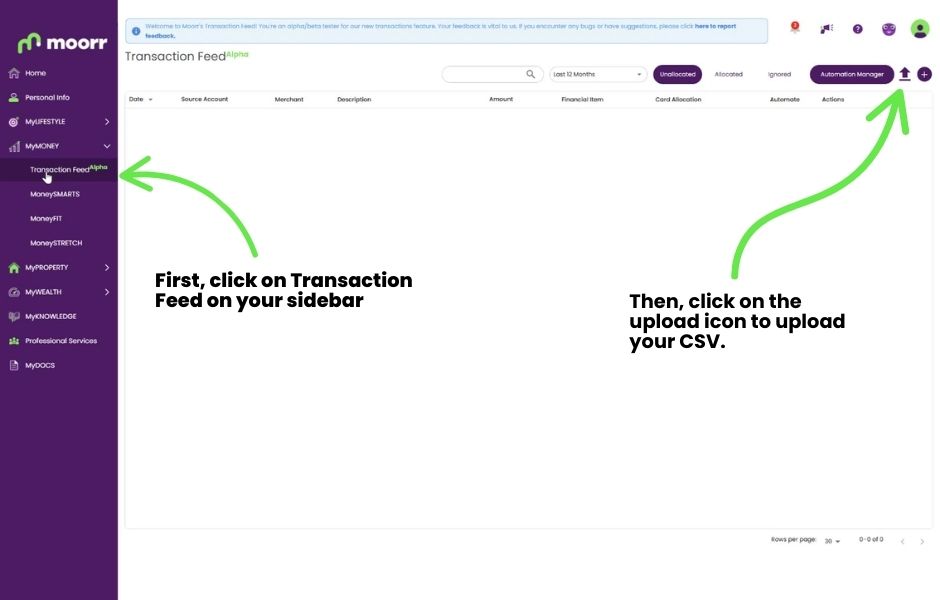
Here’s how to set up your Transaction Feed!
You can also watch the video at the top of this page.

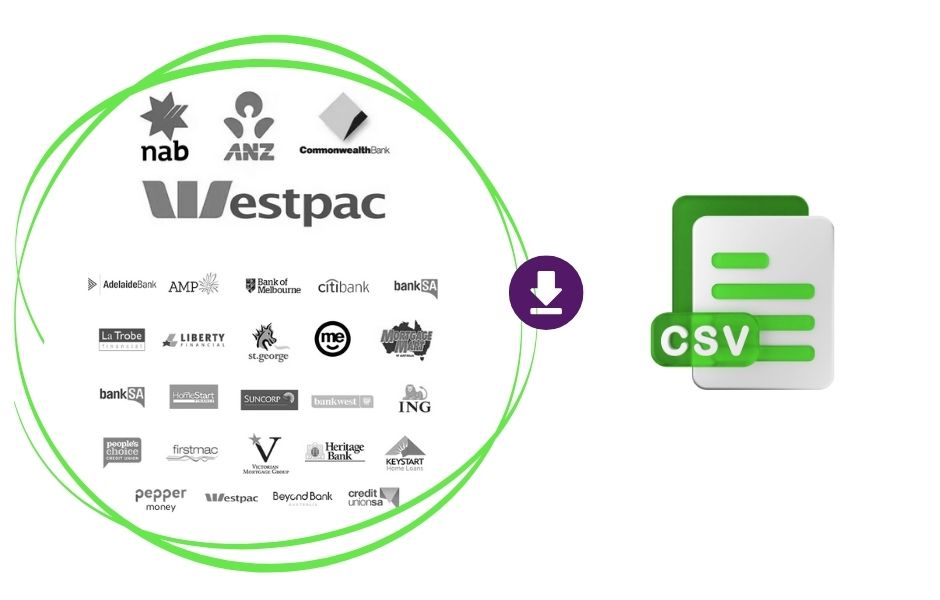
Quick Links: Exporting/Downloading Your Statements

Heads-Up for MoneySMARTS Users

Great news! The new transaction feature lets you import your banking data directly into Moorr, making it faster and more accurate than before via manual entry.

Let’s get started, firstly with this helpful piece of advice to get underway.

Best Practice for Importing Transaction Data via CSV for Existing MoneySMARTS Users

To keep your older ‘manually’ entered data clean and to avoid duplicate transaction data in your Financial Cards (within MyFINANCIALS) –  we recommend only importing transactions from your most recent transaction entry going forward.  Ensuring you don’t overlay the manual transaction data you have already entered.

You should get a warning message when existing MoneySMARTS transactions are detected to advise you of this, as our Smart AI import tool will help you filter out and only import transactions later than that date. For example, if your last manual transaction was on July 1, 2025, we’ll recommend only importing transactions later than that date.

You could choose to import older transactions, but this will likely create duplicate entries in your account, so best to just set your CSV import from the last manually recorded transaction date and go from there.  Otherwise, you’ll then need to go back and manually delete the older, duplicated records.

MoneySMARTS – Provision Jar Transactions

Naturally, importing directly from your Bank CSV files means you’ll get all the additional transactions relating to non-provision transactions. Once you’ve completed the allocation of your transactions, your MoneySMARTS area will still show you just your Provision Jar data. 

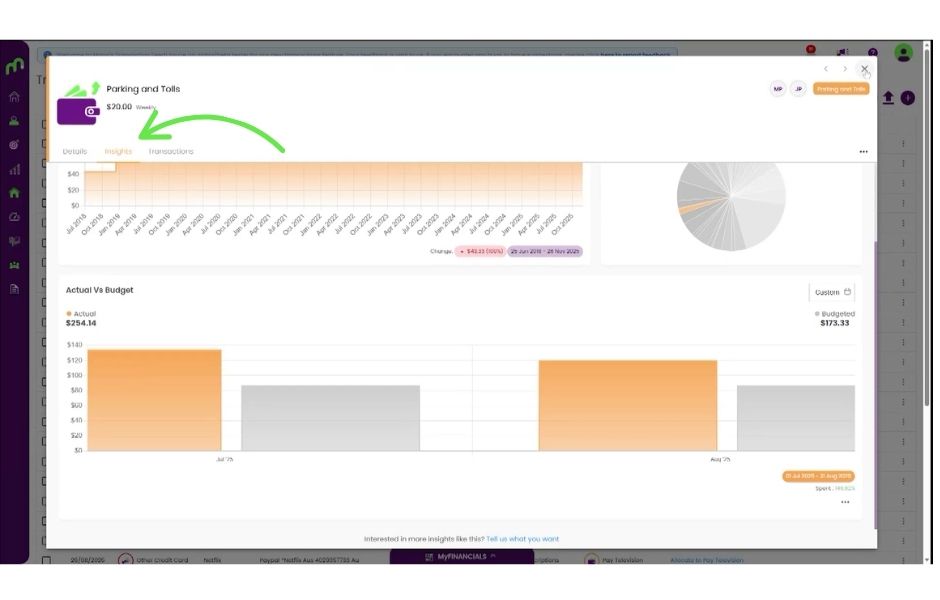
All your other transactions, once allocated to a financial card, will also help you understand more around your actual vs budgeted spending for each of those areas.  You do this by visiting each Card’s insight’s tab directly.

Navigation around the Transaction Feed Page

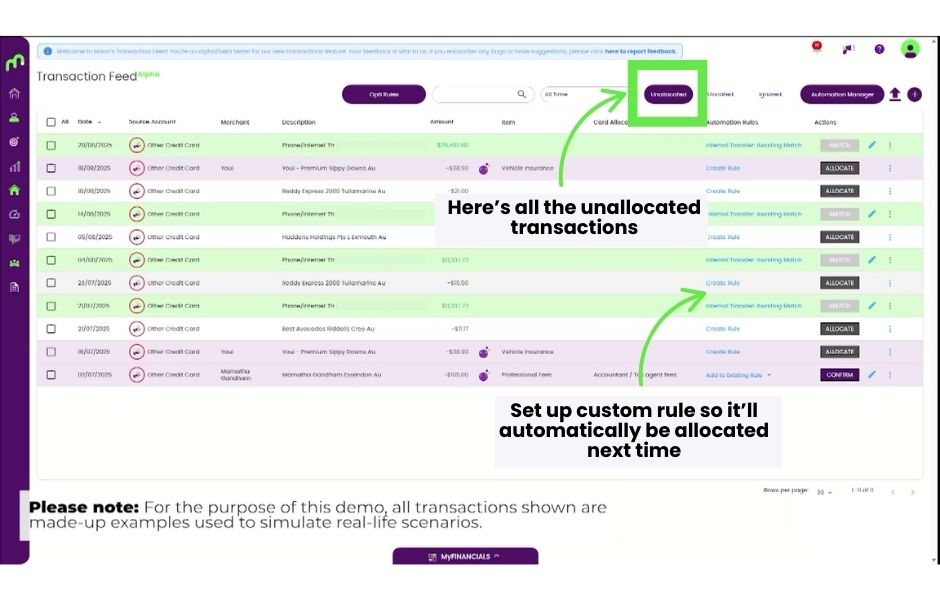
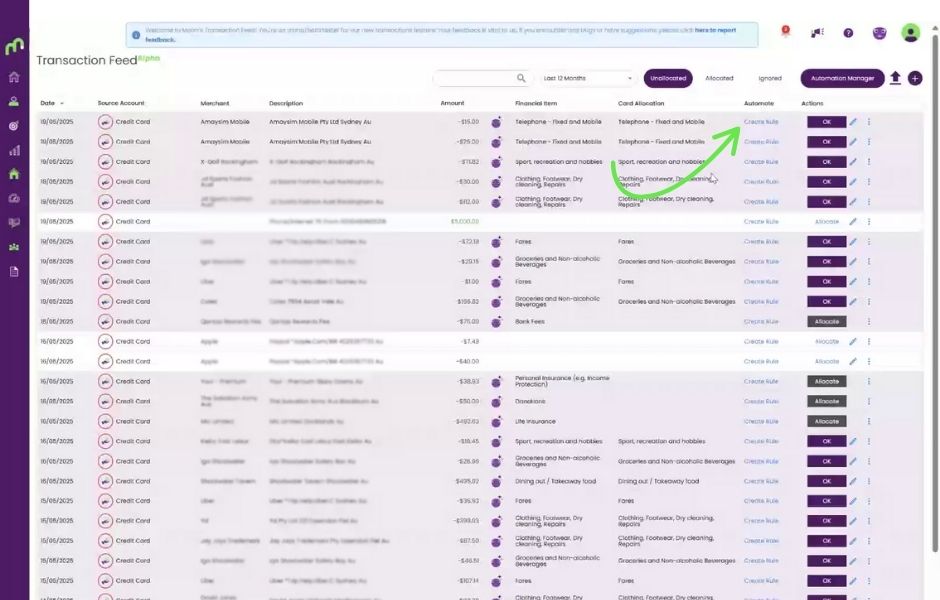
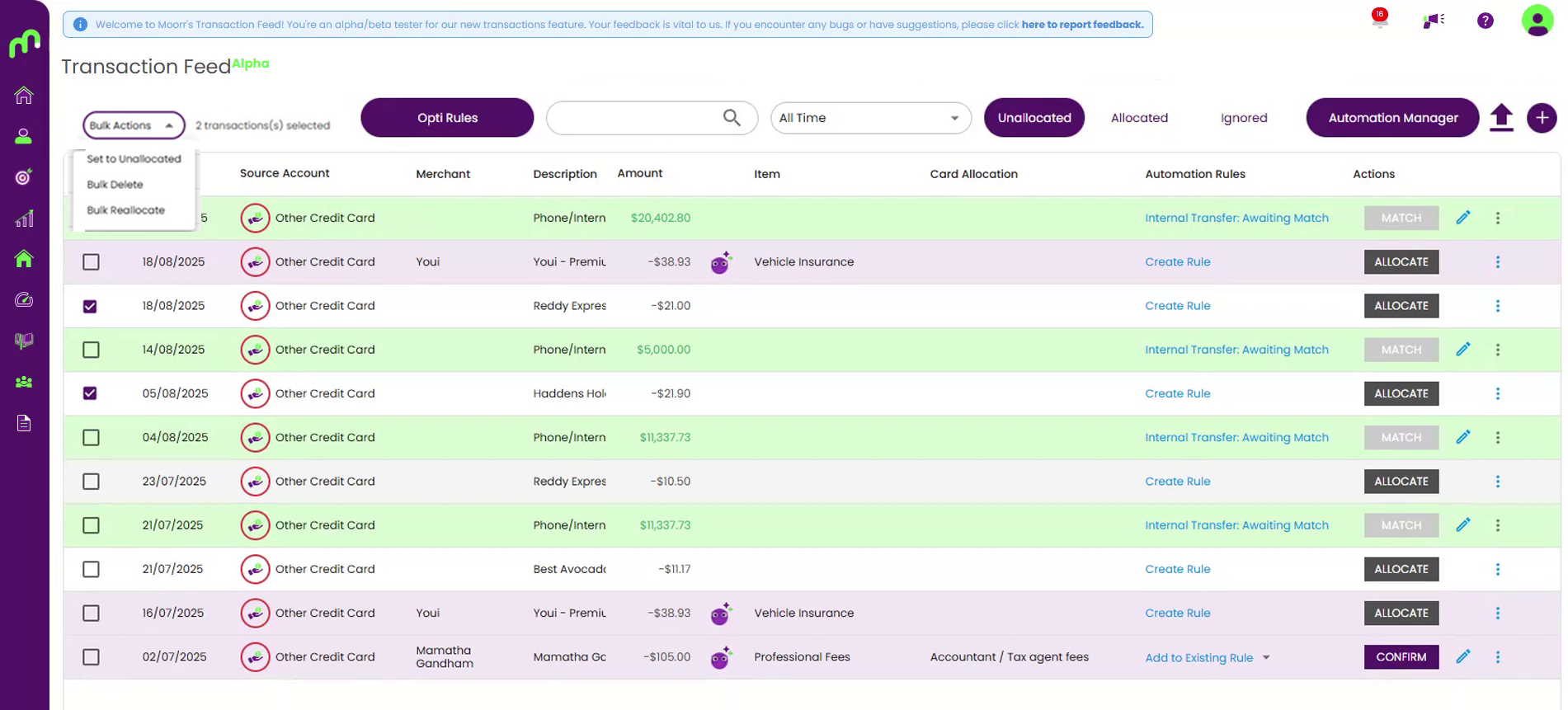
Below is how Unallocated Transactions will appear.
When in the Unallocated window, you’ll find certain transactions that have yet to be allocated to any specific card have different colour representations – what do they each mean?

  • White/Clear: a transaction with no AI suggestion or existing rule assigned
  • Purple: An Opti AI suggestion to assign it to a specific card
  • Green: Detection of a possible internal transfer

Click on the green dots to learn more.

View and Edit your Opti Rules for transactions
(AI generated recommendations):

This takes you back to the Update Opti Rules – pop-up window – explained above

When you select one or more transaction records,
you have additional functionality to handle and
move multiple transactions at once.

Within Bulk Actions, for multiple transactions you can:

  • Bulk allocate /reallocate transactions
  • Bulk Reset them to ‘Unallocated’
  • Delete the transaction for good
    (helpful for possible duplicate transactions)
  • Bulk Ignore them and move them into Ignore state tab

Text Search Filter - Description

Date Range Filter

Transaction Record State: Transaction records have three states:

  1. Unallocated – they are yet to allocated to a card
  2. Allocated – they have been allocated to a card
    and will appear when you open that card
  3. Ignored (coming soon) – when you want to disregard that
    transaction from your calculations, but you don’t want to delete it

Automation Manager: Where all transaction rules are housed and managed

Upload CSV Transactions. Begin the CSV import function here.

Add Manual Transaction: Users can load in manual transaction if they wish

Allocation Action: Skip setting up an unnecessary rule, by allowing you to
just match that transaction quickly and directly to a card, BUT not
setting up any future rule for the same merchant.

Match:Design to match up transfers & repayments
of money from one bank account to another
(within your household)

Confirm: Gives you the ability to review before allocating the transaction.

Automation Rules: Select existing or create a new rule. Scroll down this page to learn more about Automation Rules.
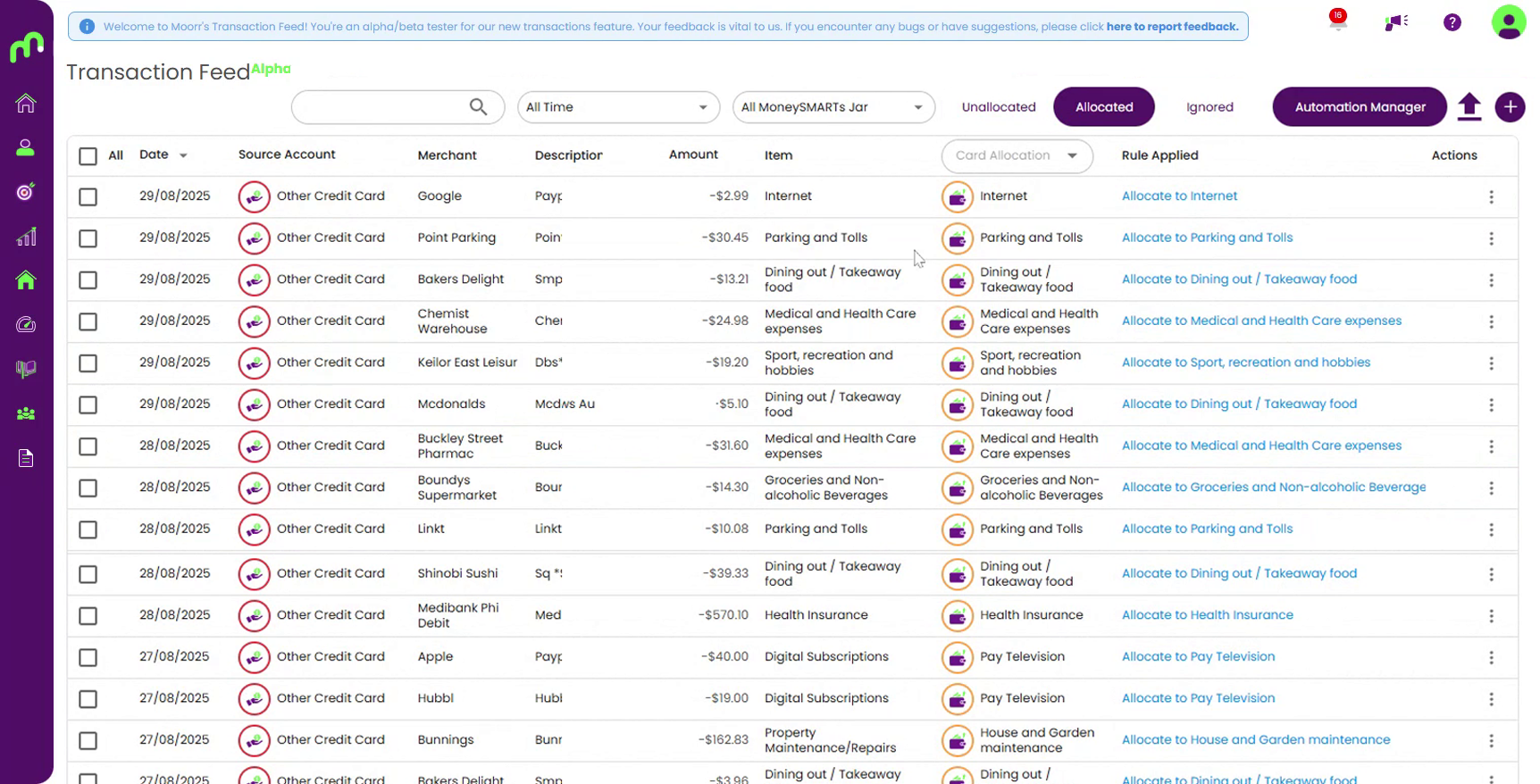
Below is how allocated transactions will appear. Click on the green dots to learn more.

Tick on the checkbox to select your transactions.

Date: Recorded date of the transaction

Source Account: The bank account in which the transaction originated

Merchant: Name of the merchant who supplied the good or service

Description & Amount: The transaction information

Rule Applied: The name of the automated rule created

Item: The Financial Item category

Card: The Financial Card

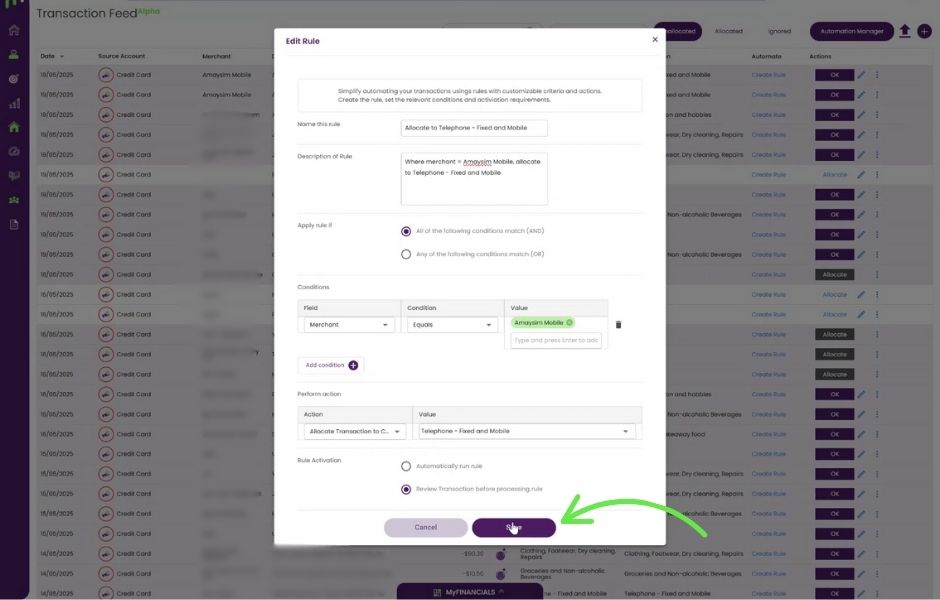
Automation Rules:

Think of your Transaction Feed like sorting a giant pile of laundry. The first time, it takes ages — shirts in one basket, socks in another, that one rogue towel you forgot you owned. But once you instruct someone how you like things sorted, suddenly it becomes effortless.

That’s exactly what Automation Rules do in Moorr.

Automation Rules is our software system engine that instructs and enables the allocation of transactions to specific cards.

They learn your patterns — your weekly 7-Eleven sandwich vs your petrol stop, your Spotify bill vs your insurance premium — and they remember them forever. Every rule you confirm helps Opti get sharper and faster, turning hundreds of transactions into clean, accurate allocations in seconds. And as we move toward full Open Banking (live bank feeds), these rules become the engine that makes everything “just work” in the background… so your money stays organised without you lifting a finger.

Who can set-up these Rules?

  1. Opti’s Smart AI – which is built in the core of the system and is trained to automatically allocate merchants and transaction to card base on the knowledge it builds up from users
  2. Users themselves – They can create a new Rule or they can also edit Rules that have been created by Opti’s Smart AI.
    (Users would edit or add to certain Opti Rules if they wanted a more tailored experience to how they have set up their Financial Cards in Moorr and off the back of that set-up, how they wanted to allocate some transactions).

Type of Rule:

The first is Custom Rules. It’s quit simple, it’s rules that you manually create.

The second is Opti Rules aka AI Rules. Easy! Let’s automate it.

And the last is System Rules. This one is a little tricky and it’s to manage  transactions like transfers, Cash and Interest.

System rules help Opti’s AI engine to manage your transactions automatically. They identify each transaction’s correct assignment and apply the right actions. You can add additional terms into the existing description condition field or add additional conditions to further tailor your automation.

There are currently four system rules:

  1. Internal Transfer Classification: This rule defines key trigger words in transaction descriptions that help detect when a transaction is related to an internal transfer.
  2. Loan Interest Classification: This rule defines key trigger words in transaction descriptions that help detect when a transaction is interest on a loan. As interest on a loan typically increases your loan balance and is a separate transaction, we treat this as separate, so that we can identify actual interest accrued over time directly in your Loan card.
  3. Interest Income Classification: This rule defines key trigger words in transaction descriptions that help detect when a transaction is interest income.
  4. Cash Deposit/Withdrawal Classification: This rule defines key trigger words that may identify when a transaction could be a cash withdrawal/deposit.

We know.. the last one can a bit tricky. Why do we need a system rule for cash deposit/withdrawal?

Think of it like having a little “cash wallet” inside Moorr.

Any time you pull money out of an ATM or put cash back in, Moorr needs to know that this money didn’t disappear into thin air — it simply moved from your bank account into your real-life wallet (or vice versa). That’s why we created a “Cash on Hand” Asset Card.

This lets you track cash the same way you track your bank accounts, without needing to specify another source account every single time. If you take out $100 cash, you can record it here. If you later spend some of that cash, you can manually add those transactions too — totally optional, but available if you want a full picture of where your money actually goes.


Frequently Asked Questions

Transaction Feed is rolling out in stages during our Beta release, which means not all accounts will receive access at the same time. This helps us maintain stability, monitor performance, and apply improvements between each wave of users.

If you don’t see Transaction Feed in your sidebar yet, don’t worry — your account will most likely be in the next few release groups. You’ll receive an email and/or in-app notification the moment it’s activated for you.

If you believe you should already have access (for example, if you were part of Alpha), feel free to reach out and we’ll double-check your account.

An internal transfer is a transfer of funds within your household, from one account to another. As an example, this could take place when you move funds between accounts, make a loan repayment or credit card payment.

Importantly, it’s worth noting that internal transfers require two transactions to be matched, one from each of the accounts related to the transaction. This is because money comes out from one account and goes into another.

Transfers are automatically identified by Opti and will be shown in green. Initially, if you are uploading CSV statements from only one account, it’s likely that you’ll only see a set of unmatched internal transfers.

An example of an unmatched internal transfer:

To complete the internal transfer, all you need to do is upload the CSV statement from the account you transferred funds to/from, whereby Opti will assist you in matching these transactions together.

A suitable match is determined by:

  • Opposing transaction must come from a different Source Account than the currently selected transaction
  • Amounts much match, but in the inverse direction
  • Transaction should occur within a number of days (to allow for bank processing time and delays).

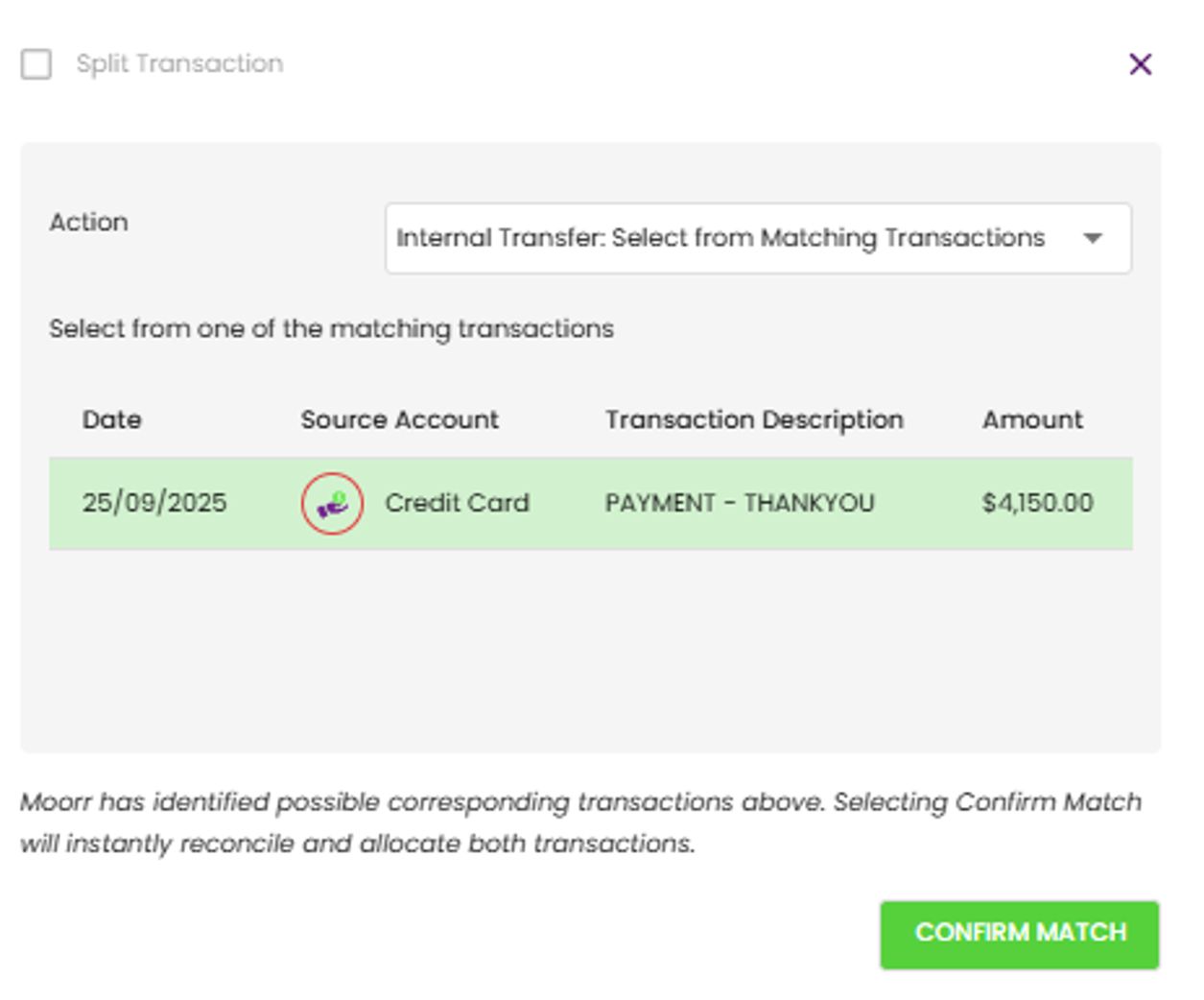
Here’s an example of an internal transfer with an identified match:

Simply click ‘Match’ on one of these transactions and confirm you have the right matching transaction selected, and the transactions will be allocated together.
Transaction Allocations allow you to allocate income/expenses directly to the relevant Financial Card.

If you view a transfer from the Source Financial Card, you’ll find that the incoming/outgoing money is displayed correctly there. However, when assessing household insights, we ensure that your internal transfers are excluded (because they net off) from these, so as to not inflate your actual income or expenditure.

Simply click on the ‘Edit’ button (the pencil icon) on the far right of the transaction to change it from an Internal Transfer, to a standard Card Allocation.

AI provides a quick way to fast track your transaction categorisation, however it’s not always correct. Simply click on either the Allocate button or Edit button and switch your allocation or transfer to the desired one.

Your Loans and credit cards are both liabilities held by your household, and as such, part of your household financial structure.
As such, loan repayments from one bank account into a loan account or credit card account would utilise the existing internal transfer functionality.

Typically, interest transactions are recorded by banks as separate transactions, in both principal and interest, and interest only transactions.

As such, interest on a loan is automatically allocated as part of the system rule Interest Loan Classification.

The interest is allocated directly on the source loan account, and you’ll be able to view this by going to the Transactions tab, under the loan’s Financial Card.

We’ll be able to use this data to provide you with better insights in the future.

Interest income is currently recorded directly against the source bank account, per the system rule Interest Income Classification.

The interest is allocated directly on the source bank account, and you’ll be able to view this by going to the Transactions tab under the relevant Financial Card.

On web, you’ll get the full Beta experience — importing, editing, rules, and insights.

We’re still working on the mobile app currently and it’s possible we’ll need to hide the transaction feed from mobile whilst we complete the final steps, in the next few weeks.

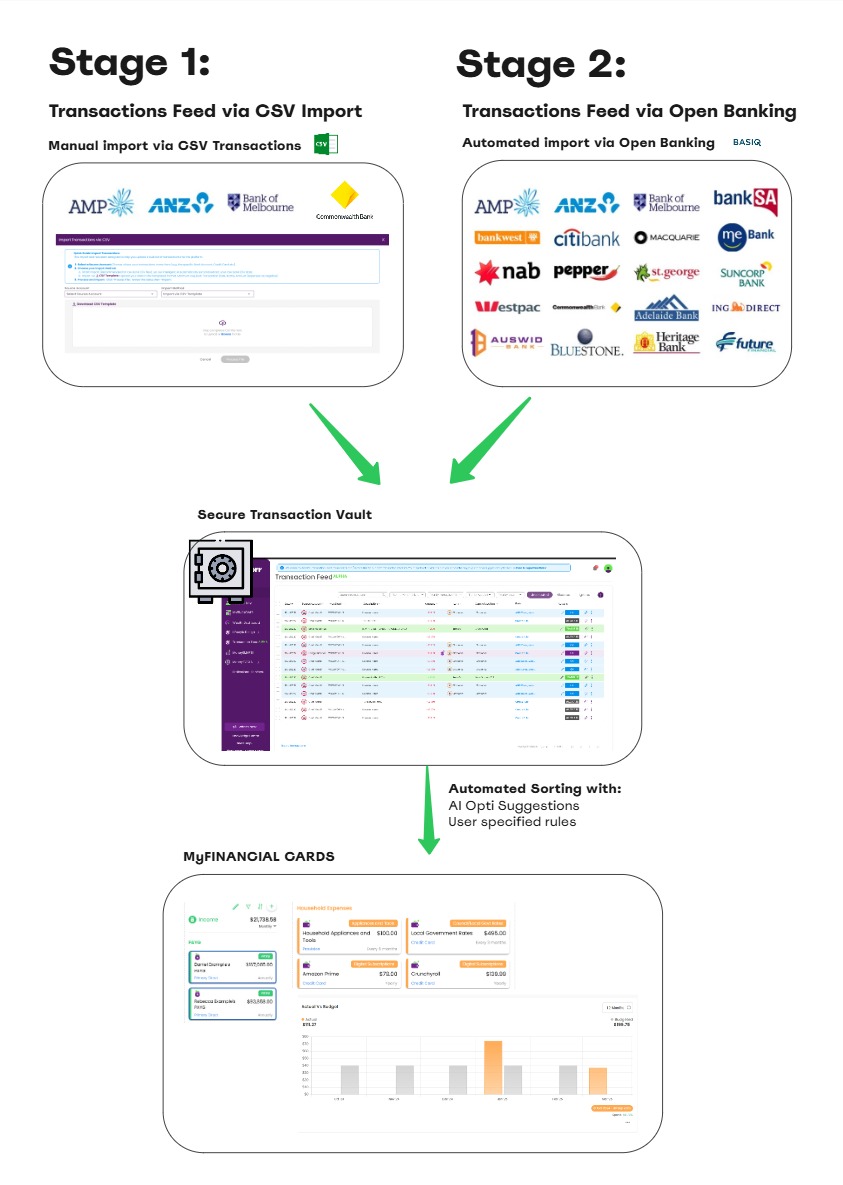
To give you a clearer picture of where this new tool is heading, here’s a quick snapshot of the rollout.

Stage 1, which is now live, allows you to upload your bank statements via CSV and process them through Moorr’s secure Transactions Feed. Once inside the platform, Opti’s AI and your Automation Rules work together to categorise your spending and feed rich insights directly into your MyFINANCIAL Cards.

Stage 2 will take things even further — replacing CSV uploads with real-time Open Banking feeds from over 100 Australian financial institutions. The experience inside Moorr stays exactly the same… the only difference is that your transactions arrive automatically.
Yes. All transactions and CSV files are handled via Moorr’s encrypted platform, with your data stored securely in your account. Only anonymised insights are used to improve accuracy.

For your privacy, our team cannot view client transaction data. 

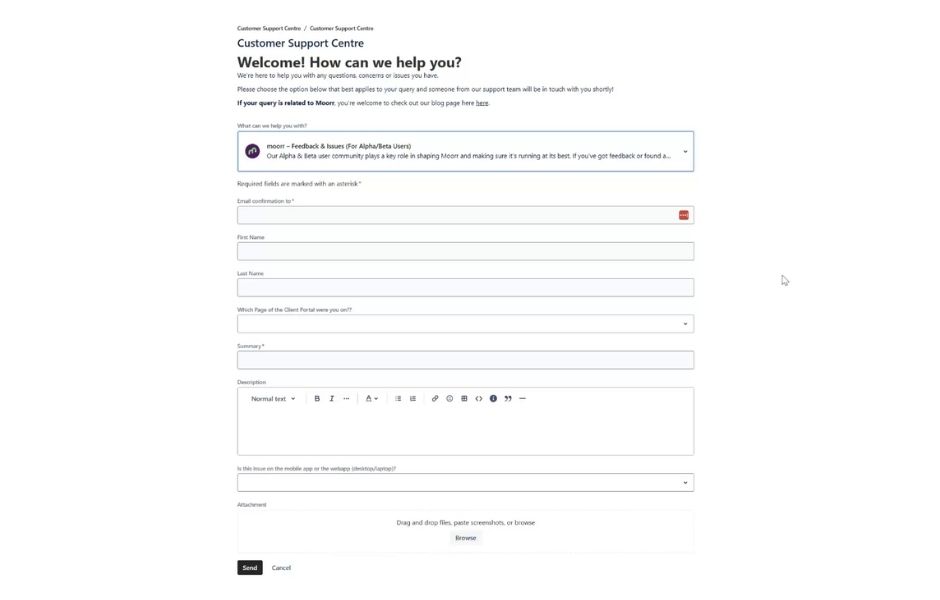
We’ve set up a direct line for Beta users. Please use this link to share your feedback:
🔗 Feedback Form

Why should you be excited?

Smart Import

Import CSVs from your bank in minutes — no extra formatting needed.

Transactions Feed

Add, edit, and view your transactions, or see them directly within your cards.

Opti_Excited-min

AI Categorisation

Opti auto-categorises your expenses and suggests the right allocation.

Rules Engine

Set rules to automate categorisation, including from Opti’s suggestions.

Budget vs Actuals

Compare planned spending with real results at the card level.

MoneySMARTS Migration

Provision data from MoneySMARTS now flows into the new categories!

On the Mobile App, you’ll have view-only access to the Transactions Feed and tools during Alpha, with editing and rules management coming in Beta. You’ll also be able to see your planned vs actual spending directly in your MyFINANCIAL Cards.

What We'd Like You To Test

As a beta user, your feedback is everything. Help us shape TRANSACTIONS by focusing on a few key areas we’re testing in Alpha.

User Interface Logic

Is the flow simple and intuitive, or confusing in parts?

Opti's Accuracy

How well is Opti categorising your transactions into the right areas? Keep an eye on how many are automatically allocated vs how many need manual changes.

Rules & Category

Are system-suggested and custom rules saving you time and reducing manual work?

Latest Updates & Fixes

Every update we make during Alpha will appear here, so you always know what’s new, what’s fixed, and what’s next.

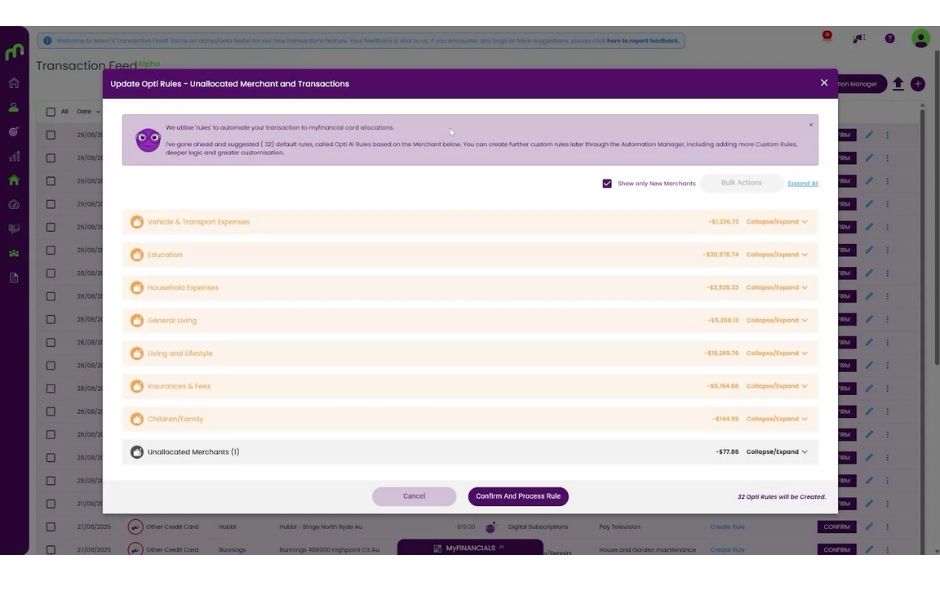
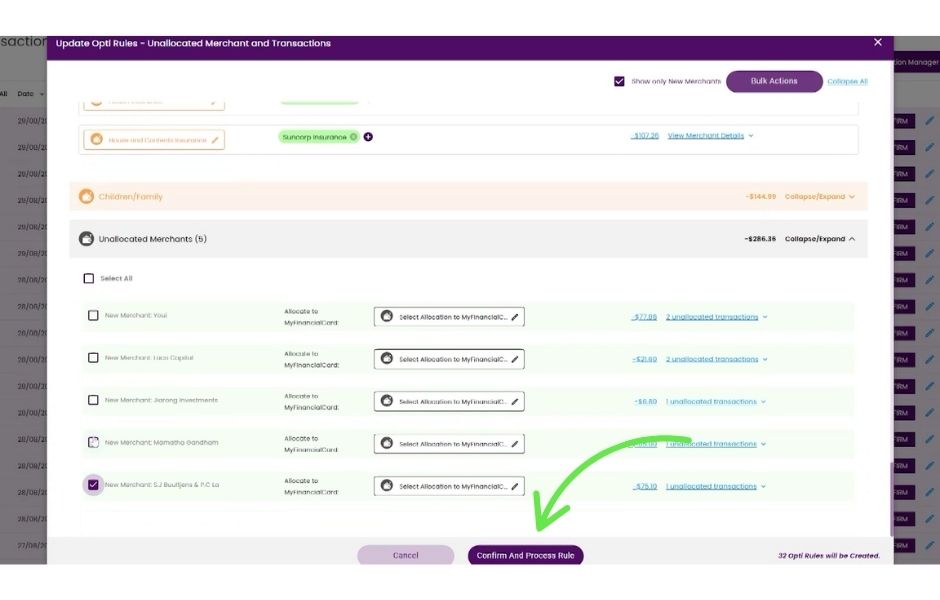
When you have new unallocated transactions, you’ll find a new ‘Opti Rules’ button on your unallocated transactions page. 

Clicking this will open a new window where Opti automatically organises your unallocated transactions into recommended categories. 

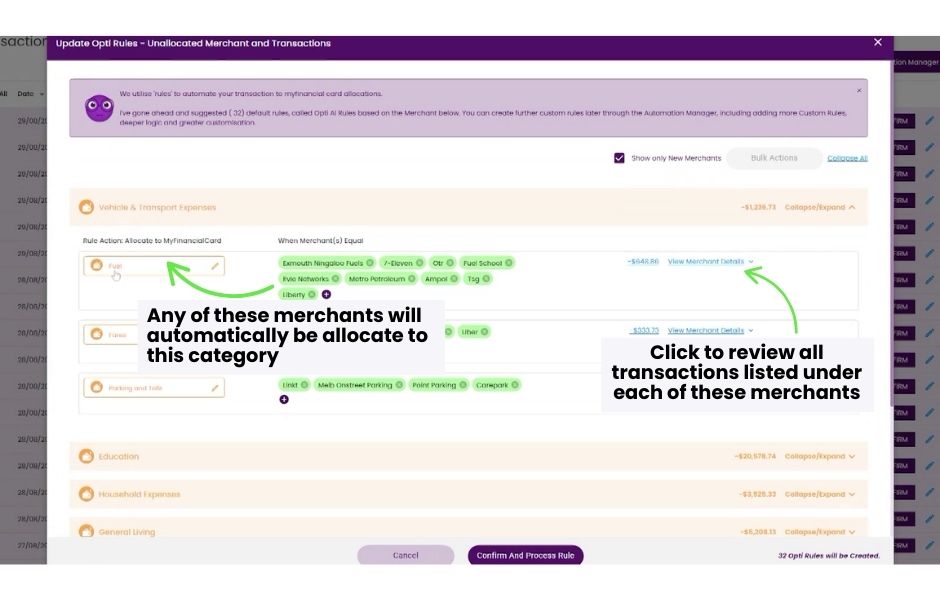
Opti does this by suggesting rules (Opti Rules, as they are suggested and created by Opti) based on identified merchants, helping you quickly allocate transactions to the correct card or category. 

This should help save you a boatload of time organising transactions instantly whenever you choose, or whenever you upload new CSV files.

You can quickly move around merchants to the right area, or leave them in ‘unallocated merchant’s for future review.
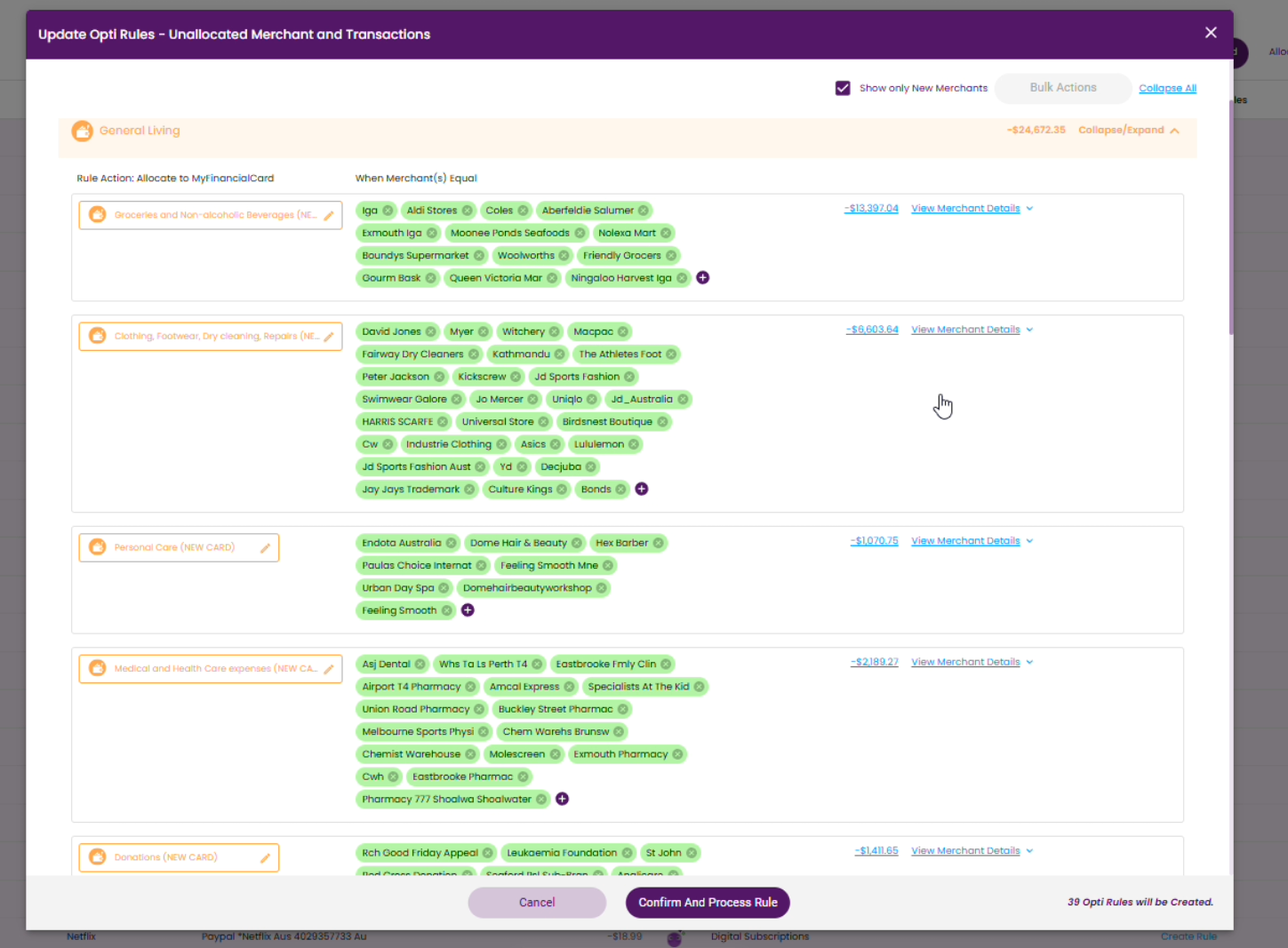
Once you’re done, clicking ‘confirm and process rules’ will create a rule to help allocate all of the above merchants.

It’s worth noting if you have any merchants you don’t want to automatically allocate, for instance, if Opti has mistakenly picked up merchants that are related to transfer transactions, you should remove them ‘x’ and leave them in unallocated merchants area. Those will remain in the unallocated section for you to review as per usual.

This has received a significant update, to make it more clear around the intention behind transfers. You’ll see transfers now with the ‘Match’ button, which will automatically pick up and identify matching transactions from other source accounts as they become available on the platform.

Once a possible match is identified, the ‘Match’ button becomes available to click, and you can click first to confirm the right matching transaction.
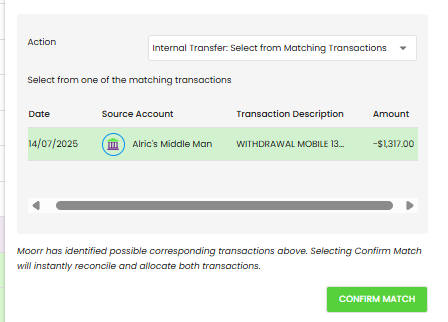
By the way, if Opti incorrectly identifies a match, or incorrectly suggests something is spending when it should be a transfer, you can always use this Action dropdown to change to the right selection.
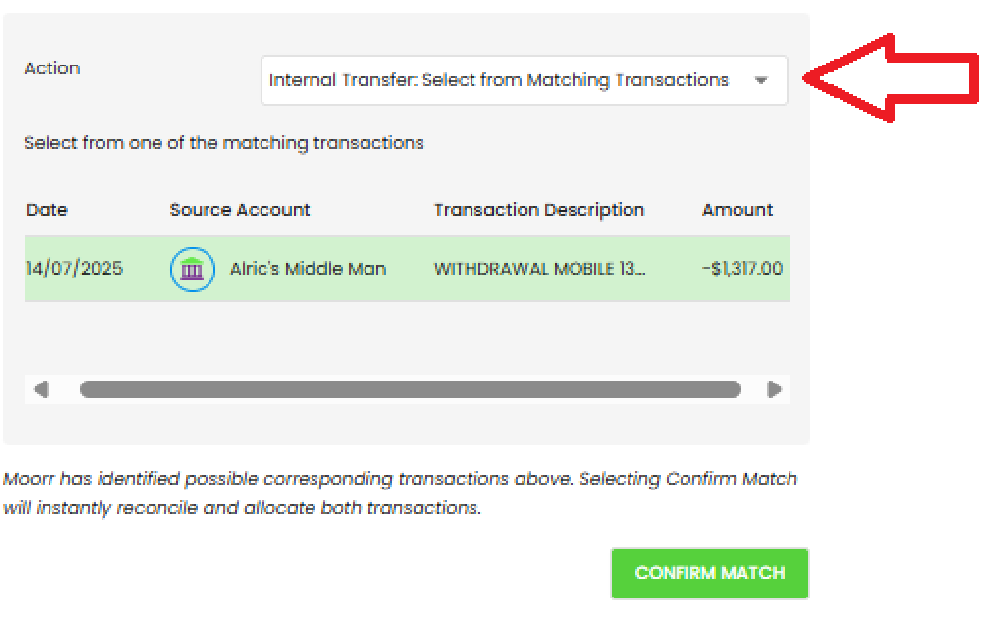
It’s the calm before the storm here, as the team is in full swing testing the latest changes to Internal Transfers and some huge changes to automatic bulk rule creation.

Here’s a quick sneak peak:

Internal Transfer Changes

Many of you provided the feedback that the matching internal transfers were not correctly identified and when multiple options were possible, it would be better to review the right selection first before choosing this.

We’ll update this from:
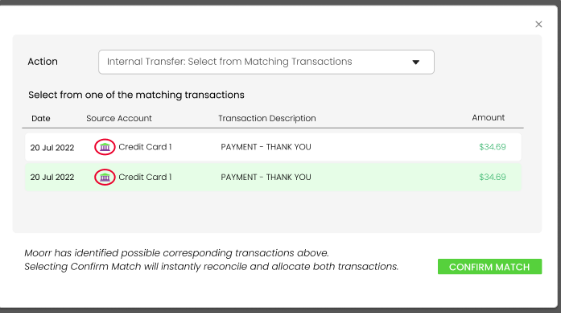
  1. Transfer terminology will be changed to “Match” to better align with Moorr’s expectation that internal transfer transactions need two transactions – one incoming and one outgoing transaction – to match correctly.
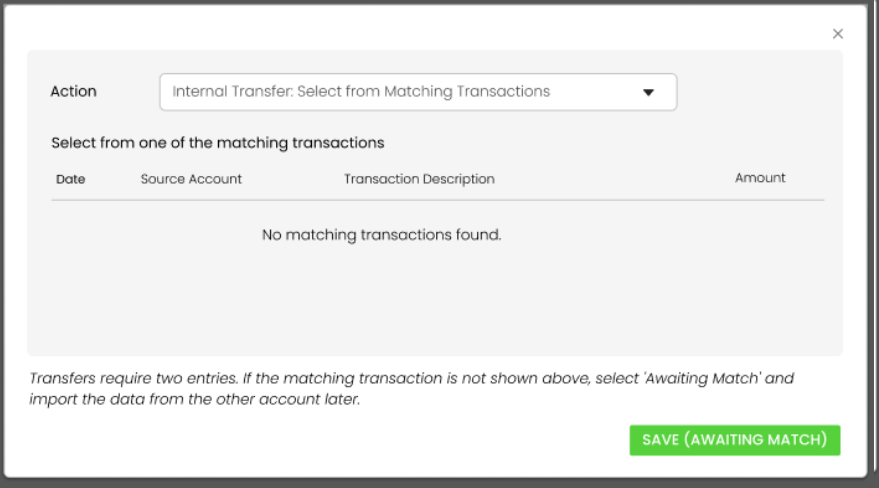
  2. Instead of auto-transferring upon click, when you click ‘MATCH’ it will instead direct you to select the right matching transaction first.
  3. If there are none available, instead, the transaction can be placed in an ‘awaiting match’ state. 
  4. Once the suitable matching transfer is identified, it is populated into the list and able to be matched.
  5. A suitable match is determined by:
    • Opposing transaction must come from a different Source Account than the currently selected transaction
    • Amounts much match, but in the inverse direction
    • Transaction should occur within a number of days (to allow for bank processing time and delays).

That’s it for now. More big things to come next week.

Cheers,

Alric Wu, Product Manager

We’re finally excited to announce the release of Bulk Actions for our Alpha Users!

Bulk Actions:

  • Bulk Delete: This action will permanently delete the transactions from your transaction vault.
  • Bulk Allocate: This will allocate all selected transactions to the selected MyFINANCIAL Card. Important: Do NOT use this for internal transfers or repayments, as those are only identified on unallocated transactions.
  • Bulk Ignore: This is not yet functional, however we’ll introduce more about this later.
  • Bulk Unallocate: This will set the selected transactions within the Allocated tab, back to unallocated, allowing you to redo their allocations as if they were loaded in for the first time.
  • Bulk Reallocate: Under the allocated area, you’ll find the option to bulk reallocate your transactions.

A quick note on internal transfers and repayments:

Please refer to the instructions from 3 Oct with our First Update, around how internal transfers and repayments are intended to work. 

Importantly, it’s worth noting that internal transfers require two transactions to be matched, one from each of the accounts related to the transaction.

For example, if you have a loan repayment, the internal transfer requires the following to be auto matched:

  1. Transaction from your Bank Account paying the amount into the loan
  2. Transaction from your Loan Account receiving the repayment

If you’ve used bulk actions on previously allocated internal transfers and set one of the two matching transactions to either be unallocated, reallocated or deleted, the other transaction previously matched will be automatically set back to the unallocated state, as the matching link is broken.

Some other minor updates:

  1. Introduction of the Item within the rules dropdown.

    Feedback was that some customers had a lot of cards named the same, so it was hard to identify these when creating a rule. 

    For now, we’ve added the Item after the Expense, when searching within a dropdown that only contains the Card, such as in the Rules Creation/Edit modal. It’s not the prettiest, but we hope it solves that problem for now, whilst we continue working on a better solution there.

That’s all for now!

Alric Wu, Product Manager

Development is well underway in Transactions, and we’ll soon be releasing some updates for our Alpha users to trial.

In terms of feedback, it’s been relatively consistent, and we definitely hear you.

At the top of the list is:

  1. Bulk Selection and Bulk Actions. This will be the next thing we release, and I’m hoping for this to be available later this week!
  2. Better rule management: We’re working on something big here, which will help streamline the majority of basic transactions to begin with, whilst still allowing for that deep customisation rules currently allwos for.
  3. An Undo Button. This is a little trickier to implement, though we’re exploring ways this can be done. In the interim, we’re hoping the big releases with the bulk actions and rule management planned will resolve the need for this, but it is still on the table.
  4. Better Date detection in CSV imports: We’re making daily improvements in this area and definitely am working on ensuring as many formats are catered for.
  5. Transfers and Repayments: Many of you noted that repayments are not shown in allocations. This is intentional, and repayments and transfers should be performed by the internal transfer function. Please see my post on Oct 3 below, for a more detailed explanation of how this is handled. 
    In summary, the system expects both sides of the transactions to be loaded in order to correctly match your transfers and repayments.

For those of you who are coming to the Alpha feedback session on Monday night, I look forward to speaking with you further there!

Cheers,

Alric Wu, Product Manager

Thank you to everyone who has taken the time to try our new feature and provide feedback.

As a summary, here are some of the core features that we are now working on, based on this feedback as a highest priority:

  1. Bulk Actions: Users will be able to select transactions to bulk delete, bulk allocate, bulk unallocate etc.
  2. Repayments and Internal Transfers: Improving the user experience and understanding on Transfers and Repayments (see further explanation below)
  3. Bulk Opti AI Rule Creation: Once your data is imported, we’ll automatically suggest a set of Opti Rules to automatically create, thereby potentially helping you auto-allocate 70% of your transactions immediately.

Bugs:

  1. (Fixed) A bug due to date format preventing AI import of CSV files.
  2. (Fixed) A bug preventing rule creation, after hitting “save”.
  3. (Investigating) AI incorrectly suggesting ‘Bank Fees’ for a lot of transactions.
  4. (Investigating) A bug causing users to not see the Automation Manager.

How to Handle Transfers & Loan Payments

The key is that each MyFINANCIAL Card should be linked to only one Bank Account.

Load Both Sides of the Transaction: When you upload transactions via CSV, you need to load the data for both accounts involved in the transfer.

  • If you’re uploading transactions for your Transaction Account, only upload the CSV data specific to that account.

  • For an internal transfer or loan payment, you must also load the corresponding transactions for the Loan Account or the Credit Card it went to.

So, for best results, you need to upload transactions from ALL of your existing bank accounts, so you get the transaction record from both side.

Automatic Matching: Once the transactions are loaded for both accounts, our system will automatically identify and match them as a transfer, reconciling and clearing both sides simultaneously.

In short, for the system to recognize a transfer, it needs to see both the “money out” from one account and the “money in” to the other.

We’ll implement a way for a loan payment and internal transfer to be flagged as “Awaiting Match”, so that it becomes a bit clearer on the next steps here.

Thanks again for your amazing feedback.
Alric Wu Product Manager

24 Sept: Very excited for our first one! Leave your feedback below so we can get to work 😉Bul

We’ll list out all the updates that we’re working on here!

Let us know how to keep you in the loop!

Let us know how to keep you in the loop!


Privacy Policy

This following document sets forth the Privacy Policy for this website. We are bound by the Privacy Act 1988 (Crh), which sets out a number of principles concerning the privacy of individuals using this website.

Collection of your personal information

We collect Non-Personally Identifiable Information from visitors to this Website. Non-Personally Identifiable Information is information that cannot by itself be used to identify a particular person or entity, and may include your IP host address, pages viewed, browser type, Internet browsing and usage habits, advertisements that you click on, Internet Service Provider, domain name, the time/date of your visit to this Website, the referring URL and your computer’s operating system.

Free offers & opt-ins

Participation in providing your email address in return for an offer from this site is completely voluntary and the user therefore has a choice whether or not to disclose your information. You may unsubscribe at any time so that you will not receive future emails.

Sharing of your personal information

Your personal information that we collect as a result of you purchasing our products & services, will NOT be shared with any third party, nor will it be used for unsolicited email marketing or spam. We may send you occasional marketing material in relation to our design services.

What Information Do We Collect?

If you choose to correspond with us through email, we may retain the content of your email messages together with your email address and our responses.

Cookie Based Marketing

Some of our advertising campaigns may track users across different websites for the purpose of displaying advertising. We do not know which specific website are used in these campaigns, but you should assume tracking occurs, and if this is an issue you should turn-off third party cookies in your web browser.

How Do We Use Information We Collect from Cookies?

As you visit and browse Our Website, the Our Website uses cookies to differentiate you from other users. In some cases, we also use cookies to prevent you from having to log in more than is necessary for security. Cookies, in conjunction with our web server log files or pixels, allow us to calculate the aggregate number of people visiting Our Website and which parts of the site are most popular. This helps us gather feedback to constantly improve Our Website and better serve our clients. Cookies and pixels do not allow us to gather any personal information about you and we do not intentionally store any personal information that your browser provided to us in your cookies.

IP Addresses

P addresses are used by your computer every time you are connected to the Internet. Your IP address is a number that is used by computers on the network to identify your computer. IP addresses are automatically collected by our web server as part of demographic and profile data known as traffic data so that data (such as the Web pages you request) can be sent to you.

Sharing and Selling Information

We do not share, sell, lend or lease any of the information that uniquely identify a subscriber (such as email addresses or personal details) with anyone except to the extent it is necessary to process transactions or provide Services that you have requested.

How Can You Access and Correct Your Information?

You may request access to all your personally identifiable information that we collect online and maintain in our database by using our contact page form.

Changes to this Privacy Policy

We reserve the right to make amendments to this Privacy Policy at any time. If you have objections to the Privacy Policy, you should not access or use this website. You may contact us at any time with regards to this privacy policy.