Note: Open Banking is coming to Moorr in 2027. This article has been published ahead of the wider release to help you get familiar with how it works.
Want to hear when it’s available? Join the Open Banking waitlist.
Your bank accounts are connected and your transactions are on their way into Moorr. What should you check first?
Open Banking helps bring your eligible account information and transactions into Moorr, but a quick review after your initial import will make your financial picture more useful and accurate.
What to check after your first import
Step 1: Confirm your income details
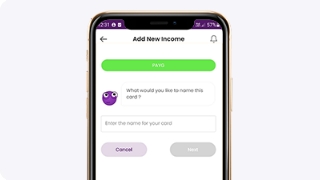
Once your transactions finish importing, Moorr may ask you to finalise your income cards. This is important because the salary deposit in your bank account typically shows your net pay, not your gross income before tax.
Moorr uses gross income information to help calculate estimated tax and support your household budgeting, so the bank transaction alone doesn’t tell the full story.
- Review any transactions Moorr has identified as possible income.
- Choose the appropriate income type, such as salary, and select the household member it belongs to.
- Enter your gross base annual income and any applicable overtime, commission or bonus details.
- If a suggested merchant isn’t income, mark it as Not Income.
- Complete the step, or return to it later if you need to confirm a detail.
If your partner connects their own bank accounts later, Moorr may also prompt them to confirm their income details.
Step 2: Review your household information in MyFINANCIALS
Open MyFINANCIALS to see how your imported data has been organised into assets, borrowings, income and expenses.
Take a moment to sense-check the balances and expense cards. Do they look right for your household? If only your accounts are connected, the information may not yet reflect your partner’s side of the finances.
To learn how another household member can connect their accounts separately, read How to Add Your Partner’s Bank Accounts to Moorr.
Step 3: Correct any expenses that look out of place
Opti helps categorise transactions as they arrive, but merchant descriptions aren’t always clear. For example, a café purchase might land in the wrong expense card.
If something looks incorrect, open the relevant expense card, review its transactions and use the edit option for that merchant to select the right card. Where offered, you can choose to move the existing matching transactions as well.
Step 4: Check your household summary
Head back to your Home page and review the summary of household income, estimated tax and expenditure. If a figure seems higher or lower than you expected, that’s a useful prompt to check the underlying MyFINANCIALS cards or transactions.
You can also review the suggested budget amounts against what you know about your household. Bringing additional bank accounts into Moorr may reveal spending that wasn’t visible in the initial import.
Step 5: Review the Transaction Vault
Open the Transaction Vault and look at the Transaction Summary. You can review the transactions that have been imported, along with those marked Allocated, Unallocated or Ignored.
Don’t worry if everything hasn’t been allocated straight away. Some descriptions are ambiguous, and some transfers need both bank accounts connected before Moorr can identify the two sides.
- Review Unallocated: Check transactions Opti hasn’t confidently categorised.
- Add missing accounts: Connect any eligible household accounts you’d like included, with the appropriate account holder’s consent.
- Use Custom Rules: If a recurring transaction needs specific handling, a rule can help categorise similar transactions in future.
For a walkthrough of the first connection process, see How to Connect Your Bank Accounts to Moorr with Open Banking.
Once your income, cards and transactions look right, you’re in a much better position to use Moorr’s budgeting and financial insights. If you’re preparing for an Empower Wealth consultation, this is also a good time to check that the information you want to discuss is up to date.
Need help or have a question? Visit the Moorr Help Centre.