Want to bring your actual bank transactions into Moorr without connecting through Open Banking?
You can use CSV Import to upload transactions from your bank into Moorr’s Transaction Feed, where Opti can help categorise them and match your spending to your MyFINANCIALS cards.
Here’s how to do it step by step.
Note: Tried the steps below and is still having troubles? Read: Having Trouble Importing a CSV into Moorr? Start Here
Before you begin: Check your Financial Cards
Before importing transactions, make sure the corresponding Financial Cards already exist in MyFINANCIALS.
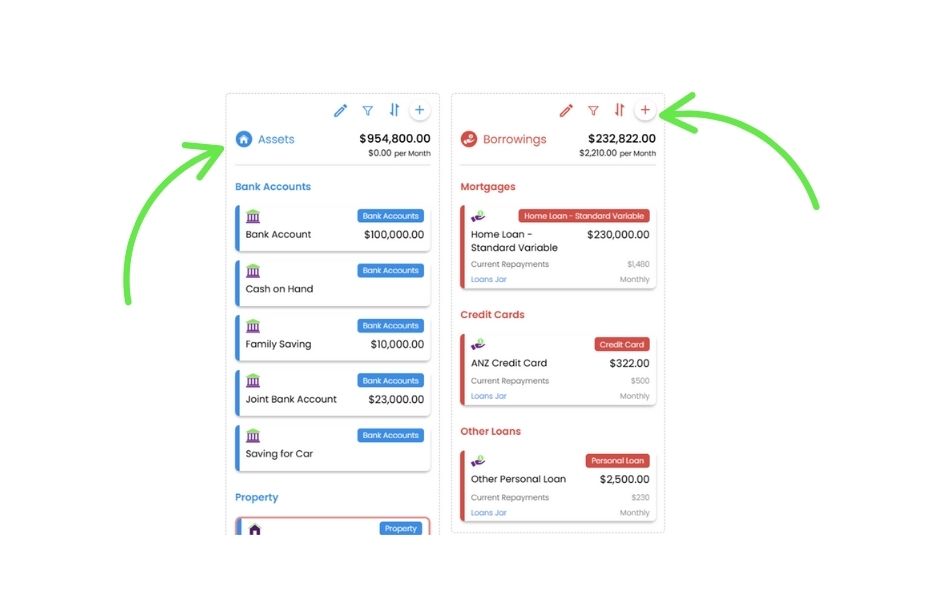
For example, if you want to import transactions from your:
- everyday account
- savings account
- offset account
- credit card
- loan account
you’ll need a matching account or card set up in Moorr first.
If you’re new to Moorr, create these before beginning your CSV Import.
If you’re an existing user and your accounts are already set up, you can skip this step.
Why does this matter?
When you import a CSV, Moorr needs to know which Financial Card the transactions belong to. If the account doesn’t exist in Moorr, there’s nothing for those transactions to be matched against.
Step 1: Download your transactions from your bank
Log in to your bank and export the transactions you want to import in CSV format. We generally recommend exporting around 1–3 months of transactions when you’re getting started.
A couple of important things to check before you upload:
- Use one CSV per bank account: Each CSV file should contain transactions from one bank account only. For example, if you have three offset accounts you want to import, download three separate CSV files.
- Check the columns: Your CSV should include:
- transaction date
- transaction description
- transaction amount
If your bank includes a column for Outstanding Balance or Bank Balance, remove it before uploading.
Quick links: How to export transactions from your bank
Not sure where to find your CSV download? These guides may help:
- AMP ↗
- ANZ ↗
- Bendigo Bank ↗
- Commonwealth Bank ↗
- ING ↗
- Macquarie Bank ↗
- ME Bank ↗
- NAB ↗
- UBank ↗
- Up ↗
- Westpac ↗
Step 2: Open the Transaction Feed
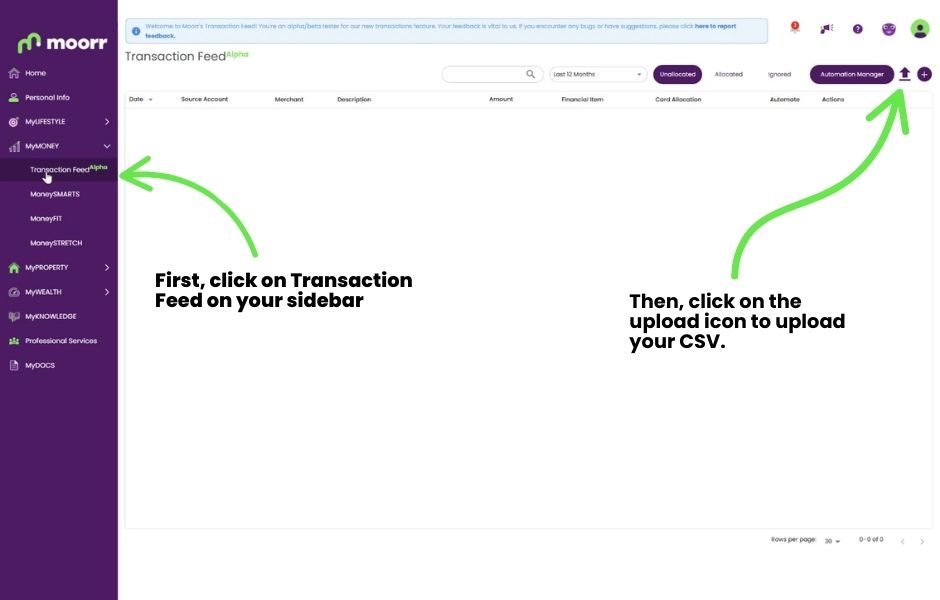
In Moorr, head to: MyMONEY → Transaction Feed
Then select the upload icon in the top-right corner to begin importing your CSV.
CSV Import is currently completed through the web version of Moorr on your computer.
Step 3: Match the CSV to the right account
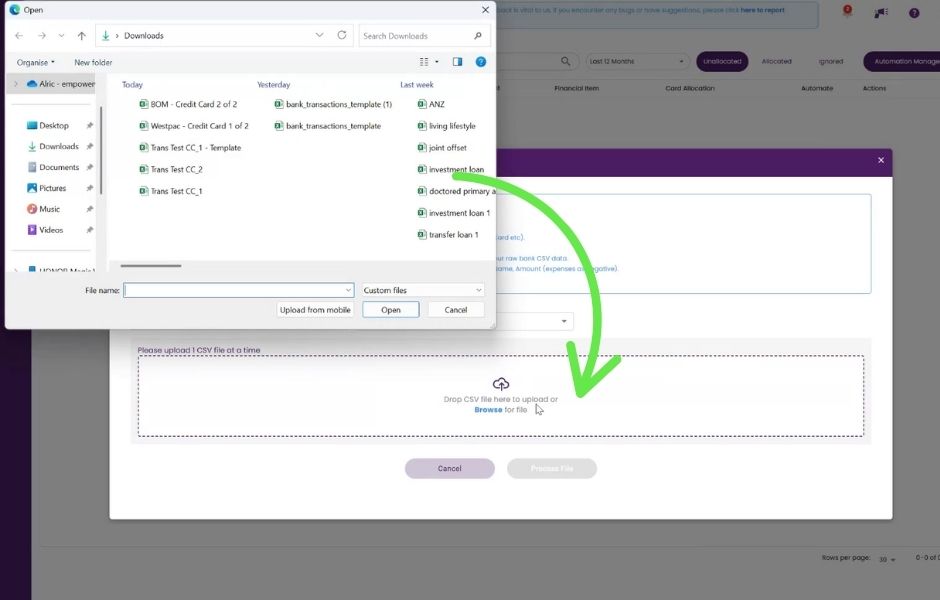
Choose the relevant Transaction Source from the list. This should be the Financial Card that matches the real-world bank account your CSV came from.
For example:
Family Savings CSV → Family Savings Financial Card
Then drag and drop your CSV into the upload area, or browse your computer to select the file.
When you’re ready, select Process File.
Step 4: Preview your transactions
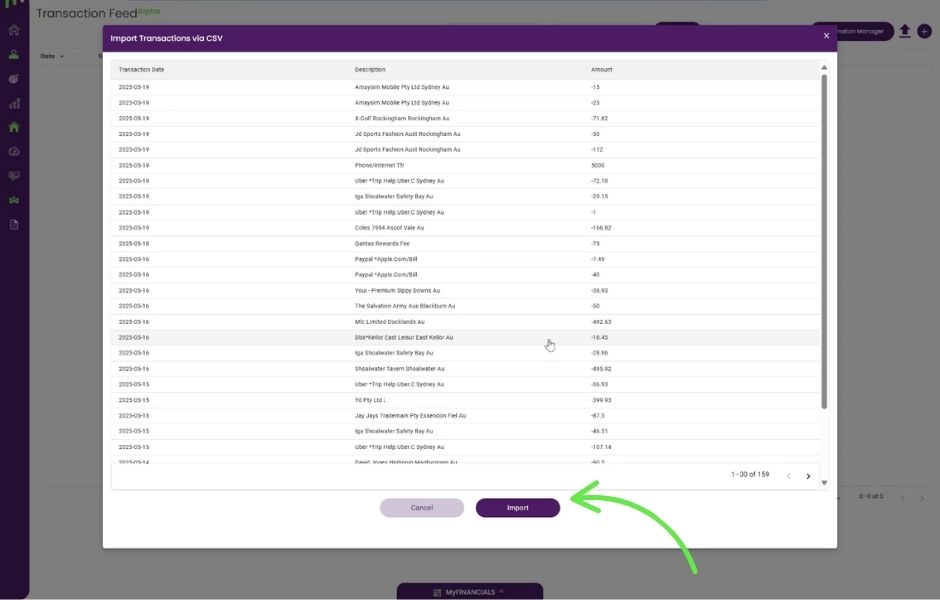
Before anything is imported, Moorr will show you a preview of the transactions it has found in your CSV. Take a moment to check that:
- the dates look correct
- the transaction descriptions look right
- the amounts appear as expected
- you’ve selected the correct source account
If everything looks good, select Import. This is where Opti starts getting to work.
Step 5: Let Opti analyse your transactions
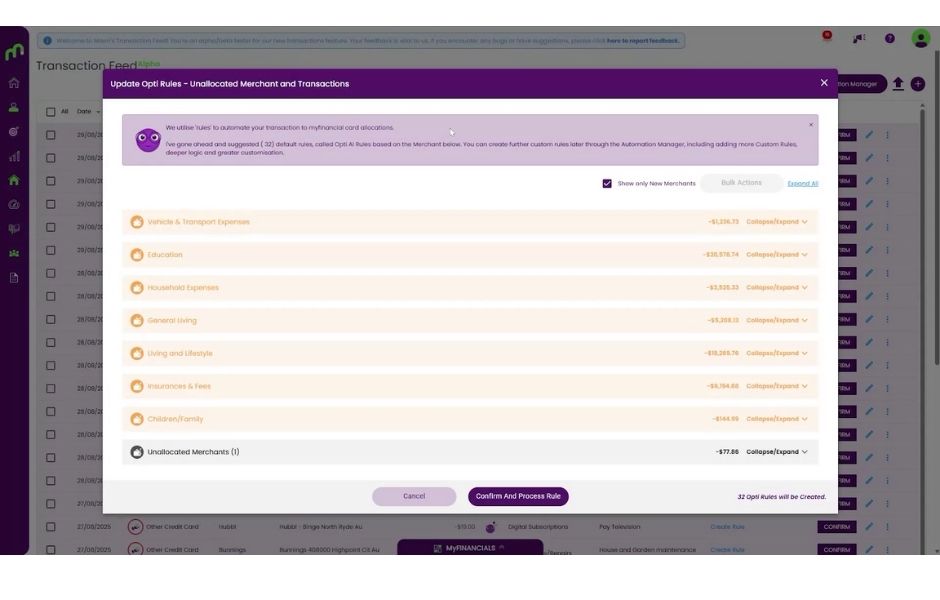
Once your CSV has been imported, Opti will analyse the transaction information and suggest how different merchants should be allocated within MyFINANCIALS.
For example, transactions may be grouped into areas such as:
- Household Expenses
- General Living
- Living & Lifestyle
- Vehicle & Transport
- Children & Family
- Education
Opti then looks at individual merchants within those groups and suggests which Financial Card they belong to. The idea is simple: instead of manually categorising hundreds of transactions one by one, Opti does much of the first pass for you.
Step 6: Review Opti’s suggested rules
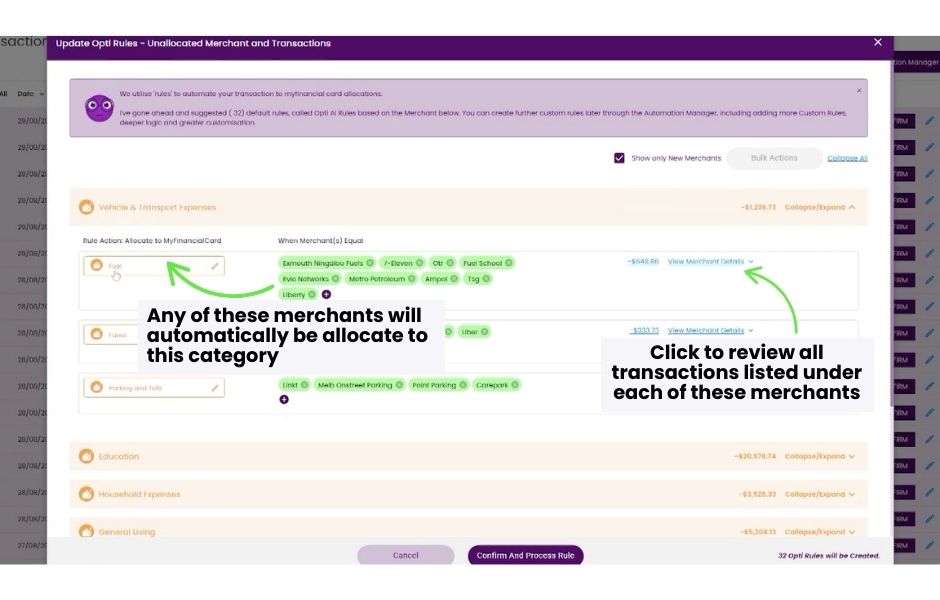
Now it’s your turn to sense-check Opti’s work. Open each category and review the merchants that have been assigned to it.
Ask yourself:
Does this merchant belong in the Financial Card Opti has selected?
If yes, leave it as is.
If not, you can change the allocation before processing the rule.
When importing future CSV files, new merchants will be highlighted so you can quickly see what Opti has identified this time around, while merchants you’ve already dealt with remain easier to distinguish.
Step 7: Deal with merchants Opti couldn’t identify
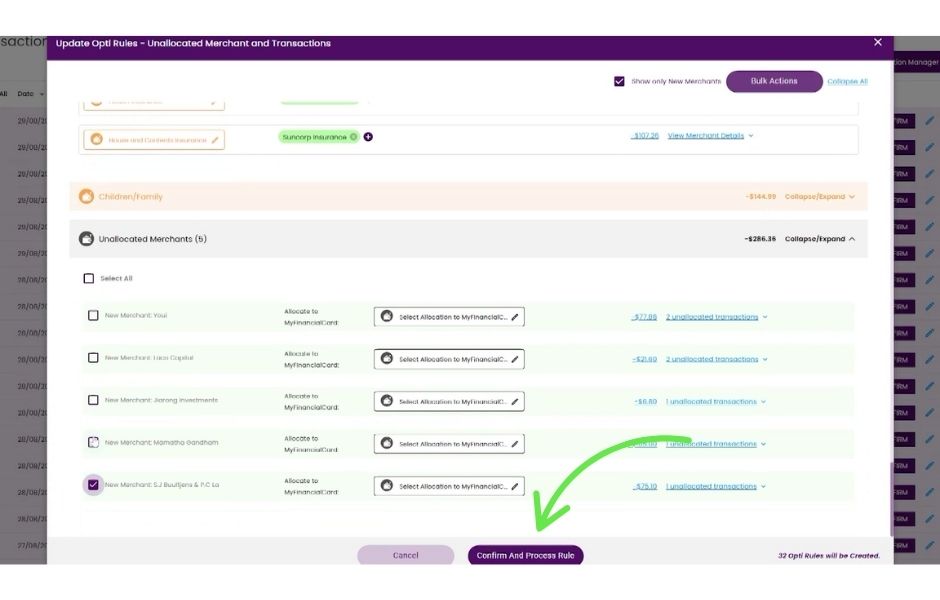
Opti won’t always know exactly what a merchant is. That’s normal.
Merchant names on bank statements can sometimes be abbreviated, use a legal entity name instead of the trading name you recognise, or simply be difficult to identify from the transaction description.
These will appear under Unallocated Merchants.
- If you recognise one, assign it to the correct Financial Card.
- If you don’t recognise it, you don’t have to guess. You can leave it unallocated and review it later.
The useful part is that once you teach Opti where a merchant belongs, it can remember that rule for future matching transactions.
When you’re happy with the suggestions, select Confirm and Process Rules.
Step 8: Review your Unallocated Transactions
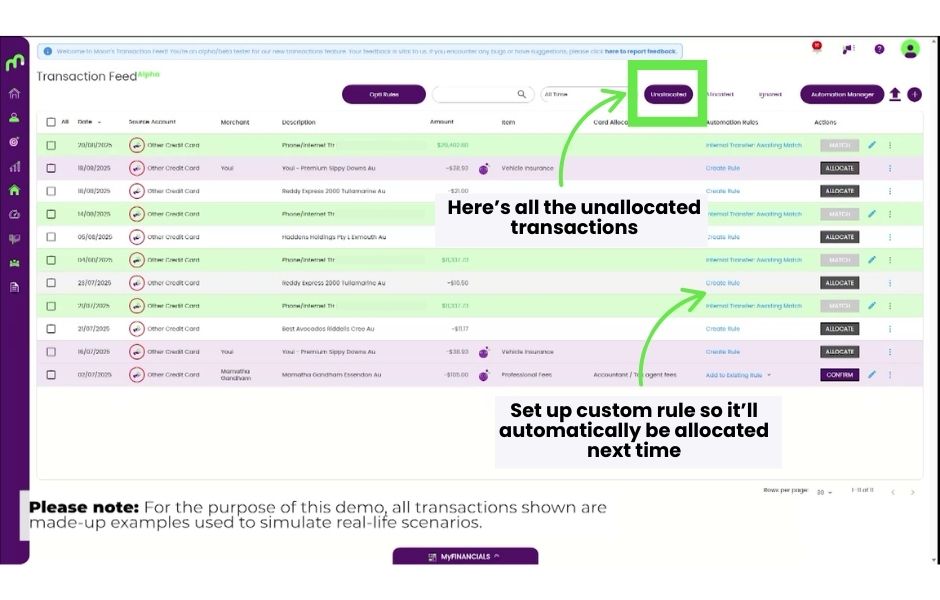
After Opti has finished processing the import, you may still have some transactions sitting in the Unallocated tab of your Transaction Feed.
This can happen with things like:
- internal transfers
- unusual transaction descriptions
- merchants that offer several different services
- payments that don’t clearly match an existing rule
Have a look through these transactions and allocate the ones you recognise.
Step 9: Create Custom Rules where needed
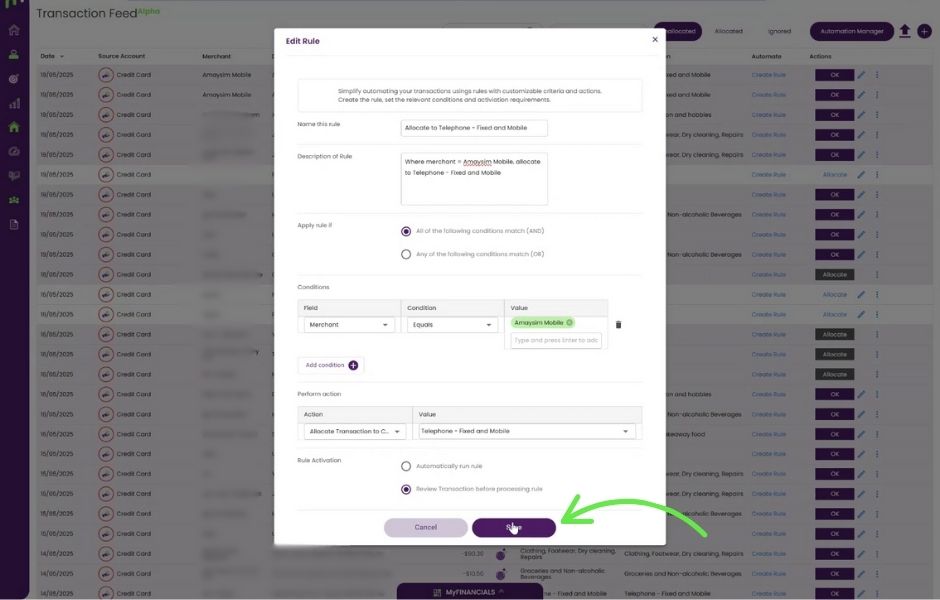
If you regularly see the same type of transaction, you can create a Custom Rule so Moorr knows what to do with it next time.
Select Create Rule beside the relevant transaction.
Custom Rules can use information such as the merchant or transaction description to automatically send future matching transactions to the right Financial Card.
You can also create and manage these rules through the Automation Manager.
Once you’ve set up the rule, select Save.
Step 10: You’re done!
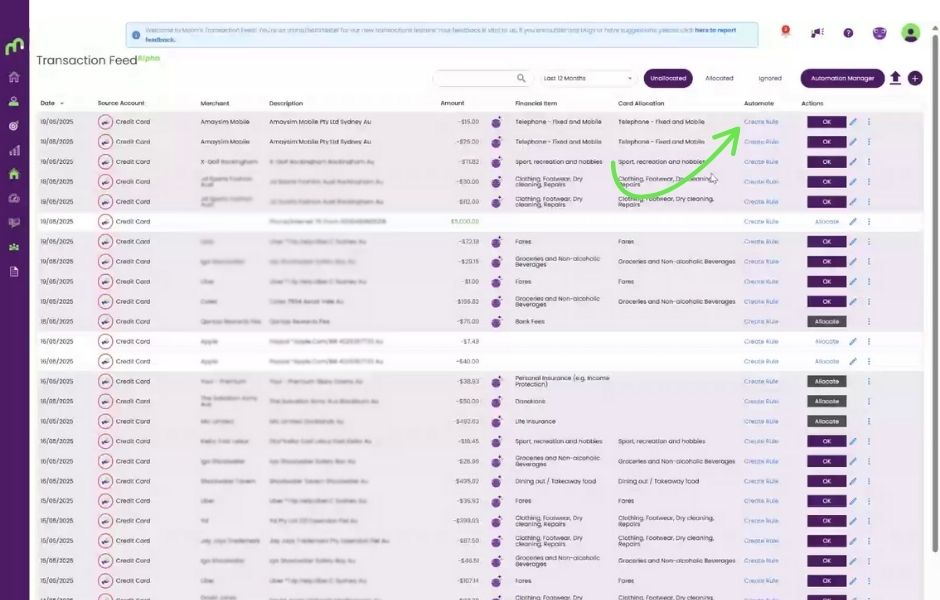
That’s it! Your CSV transactions are now inside Moorr and can feed into your Transaction Feed, MyFINANCIALS and other money insights.
The first import usually involves a little more reviewing because Moorr is learning how your transactions should be treated.
Once your Opti and Custom Rules are in place, future imports can become much quicker.
Want less manual updating?
Tried the steps below and is still having troubles? Read: Having Trouble Importing a CSV into Moorr? Start Here
CSV Import gives you control over when you bring transactions into Moorr, but you’ll need to download and upload another CSV whenever you want to update your data.
With Open Banking, eligible accounts can instead refresh automatically with your consent, removing the need for repeated CSV uploads.
Open Banking is coming to Moorr in 2027.
Learn more: Open Banking on Moorr