Note: Open Banking is coming to Moorr in 2027. This article has been prepared ahead of the wider release to help you understand the process. Screens and available options may vary by account.
Want to know when it’s available? Join the Open Banking waitlist.
Already have your financial cards set up in Moorr? When you connect Open Banking, one important step is to map each bank account to the financial card you already use for it. This helps keep your existing history together and avoids creating duplicate asset, borrowing or expense cards.
This guide explains how to choose your automation settings, connect your bank securely and link your accounts to the right Moorr cards before your first import begins.
Before you start: a note for existing MoneySMARTS users
If you use MoneySMARTS and manually enter every transaction, we recommend holding off on Open Banking for now. Open Banking is designed to make imports faster, but a detailed manually maintained transaction history may not be suitable for the automatic import process yet.
Moorr can detect duplicates between incoming Open Banking transactions and transactions previously imported via CSV. However, manually entered transactions may not have matching dates or descriptions, so duplicate detection cannot reliably match them. This means some transactions could appear twice.
If this describes your setup, contact the Moorr Help Centre before connecting.
How to connect and map your accounts
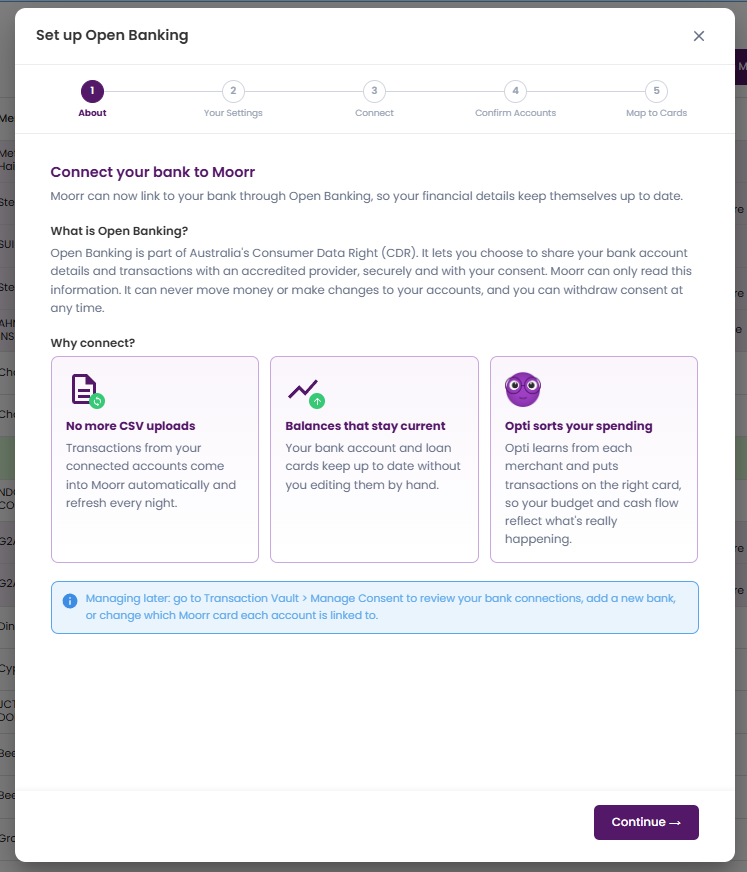
Step 1: Start Open Banking and read the overview
In Moorr, open the Transaction Vault and select Connect Open Banking. You can also begin from Settings.
The first screen explains what Open Banking is and how it can bring balances and transactions into Moorr automatically. Review the information, then select Continue.
Step 2: Choose your automation settings
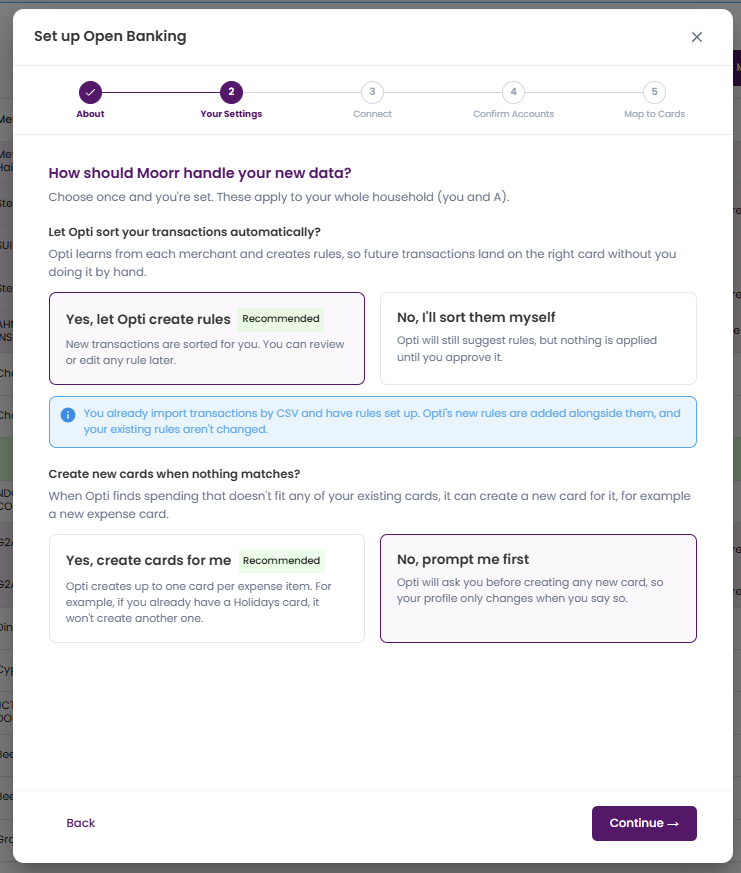
On Your Settings, you’ll see two choices that determine how Opti handles incoming transactions and expense cards. These settings apply to your household profile, so it’s worth choosing what works for your existing setup.
Let Opti sort your transactions automatically?
- Yes, let Opti create rules (recommended): Opti identifies merchants and creates rules to allocate future transactions to the most appropriate financial cards. You can review and edit the rules later.
- No, I’ll sort them myself: Opti can still suggest rules, but they won’t be applied until you approve them. This may suit an existing CSV user who prefers to review each merchant manually.
Your existing rules won’t be changed simply because you choose either option.
Create new cards when nothing matches?
- Yes, create cards for me: If Opti identifies an expense type without a matching card, it can create a new card for that expense item. This is useful when starting with a less complete profile.
- No, prompt me first: Moorr will ask before creating new cards. This is our suggested choice if your existing financial cards are already carefully set up and you want to avoid unexpected additions.
When you’re happy with your selections, choose Continue.
Step 3: Connect your bank and review your consent
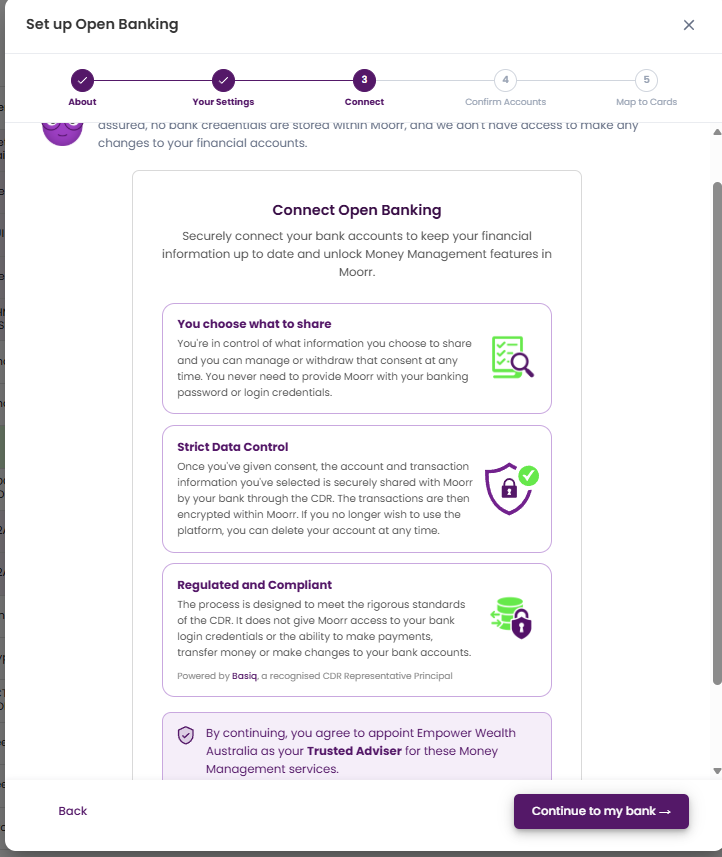
On the Connect screen, review the information about consent, security and how your banking data will be used. Select Continue to my bank to begin the connection.
Depending on your onboarding pathway, this screen may also include information about appointing Empower Wealth Australia as a Trusted Adviser. Read any such authorisation carefully before continuing.
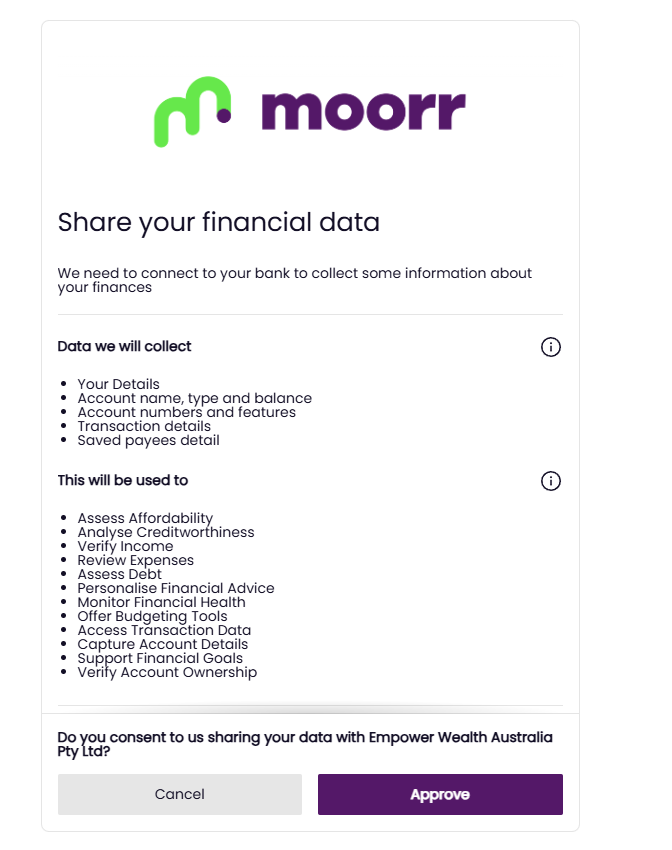
You’ll then be shown a consent request. Review the information you’re being asked to share and how it will be used. If you agree, select Approve, choose your financial institution and follow your bank’s verification prompts.
Moorr doesn’t ask for or store your internet banking password, and this connection doesn’t let Moorr move money or make changes to your bank accounts.
Step 4: Confirm which accounts to import
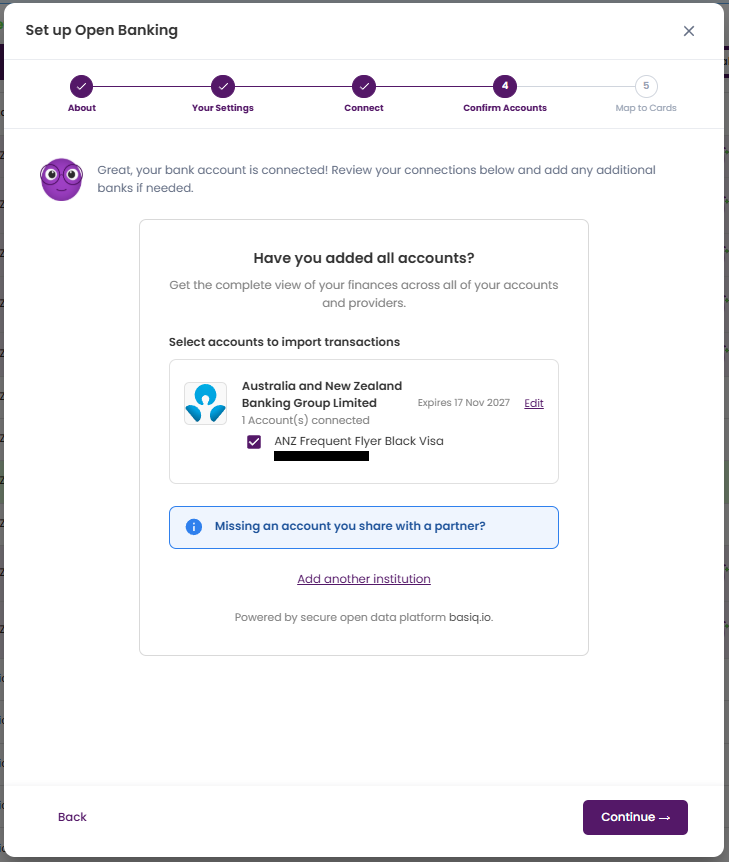
After your bank connection is successful, Moorr displays your connected institution and its accounts. Tick the accounts you want to import transactions from.
If you have accounts with another eligible bank, select Add another institution and complete the connection process for that bank too. Once your selections look right, select Continue.
Step 5: Map each account to an existing Moorr card
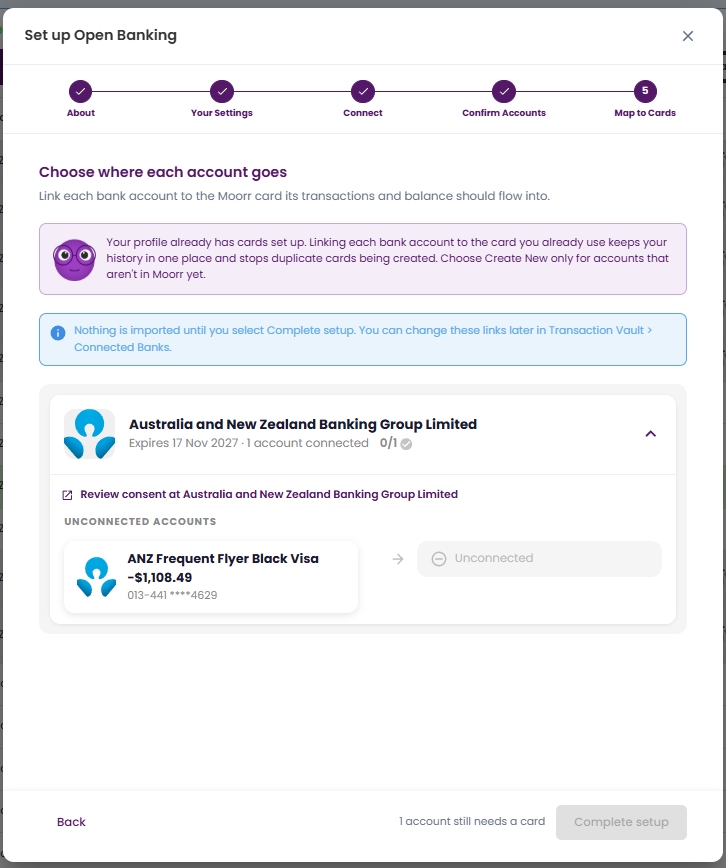
This is the most important step for an existing Moorr user. On Map to Cards, check where each connected bank account will send its balance and transactions.
- Find an account marked Unconnected.
- Select the existing Moorr financial card that represents that same bank account or loan.
- Only choose Create New if the account doesn’t already have a corresponding card in your Moorr profile.
- Repeat until every account you want to import has been mapped.
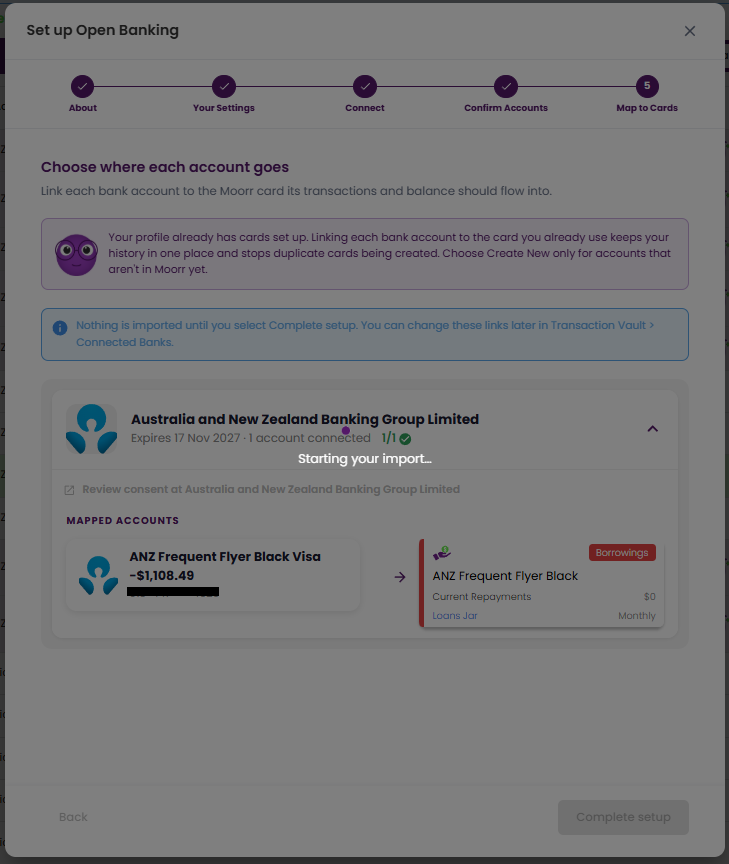
For example, if your credit card is already recorded as a Borrowings card in MyFINANCIALS, link it to that card rather than creating another one.
Once all accounts have been linked, select Complete setup. Moorr will then begin importing your connected banking information and transactions.
Can you change the mapping later?
Yes. Return to the Transaction Vault to review your connected banks and how their accounts are linked to financial cards. Use Manage Consent to review your bank connections or connect another bank. You may also see a Connected Banks option for managing account links, depending on your screen.
If you’re unsure whether a card already exists, check MyFINANCIALS before creating a new one.
Related guides
- How to Connect Your Bank Accounts to Moorr with Open Banking
- How to Add Another Bank After Setting Up Open Banking
- How to Revoke or Manage Your Open Banking Consent
Need help or have a question? Visit the Moorr Help Centre.